Reordering Garments
Reorder starts a new garment from one this customer had before, with the same style but a fabric you choose again, made to their measurements as they are today. This page covers where to find it, what comes across, and when Duplicate or Replicate fits better.
What it does
James Carter loved the navy suit you made him in the spring and wants it again in grey flannel. Filling in the style form again from memory is slow, and it is easy to miss the ticket pocket or the lapel width he chose. Reorder copies the old suit's style answers onto a new garment on the order you are working on. You choose the new fabric, check the details and send it as usual.
Reorder is one of three ways to make a garment from another. Duplicate copies a garment already on the order, and Replicate copies one, fabric included, from any customer's orders. See Reorder, Duplicate or Replicate.
Measurements are never copied: they belong to the customer, not the garment. The new garment uses James's measurements as they are today, on the same fit profile the old one used, so if you measured him again last week, those are the numbers it uses.
When you would use it
- The shirt he always orders A customer has the same shirt made every season. Pick the last one, set it to 4, and you have four shirts with his usual collar and cuffs, each ready for its own cloth.
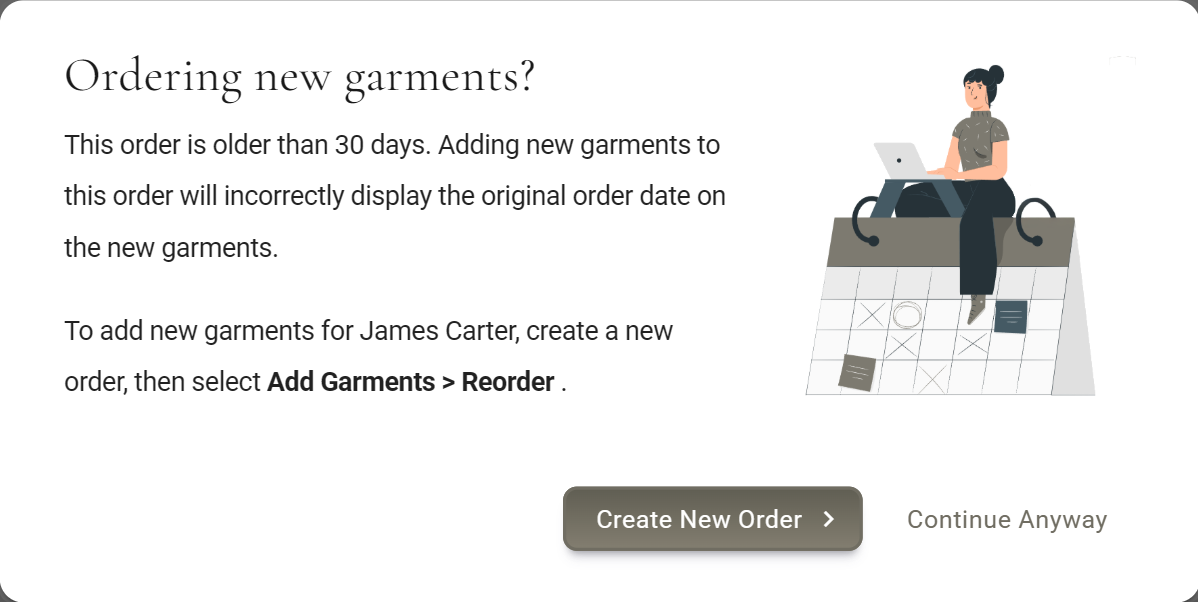
- Back after a long time You open the customer's old order to add something and MTMPRO asks Ordering new garments? first. Make a new order and reorder from there, so the new garments carry today's date.
Where to find it
The second tab in the Add Garments drawer, between New and Replicate. Open Add Garments with the button above the garments, the large Add Garments space on an empty order, or Ctrl+G (Cmd+G on a Mac). The drawer always opens on New, so click Reorder.
The Add Garments button asks first, because new garments would carry the old order's date. Create New Order only opens an empty order for the same customer: use Reorder there. Continue Anyway adds to the old order.
Aria can reorder for you, the same way. See voice commands for orders.
Reorder a garment
- Open the order it goes on Usually a new order for the customer. The list holds garments from the customer's earlier orders, not the ones already on this order, so start from a new order.
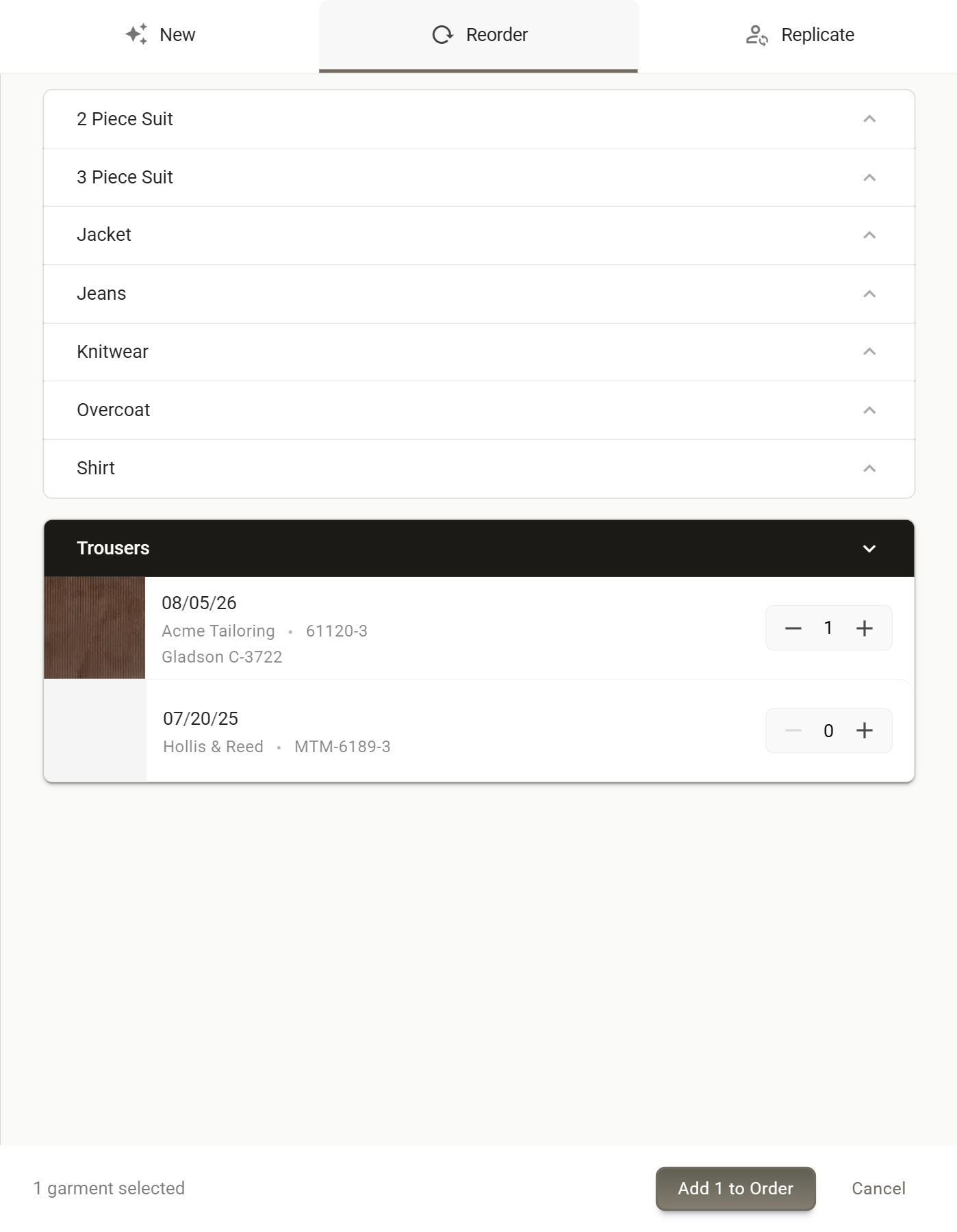
- Open Add Garments, then Reorder The customer's garments load under a heading for each garment type, A to Z.
- Open a garment type Click a heading such as Trousers to see every pair they have had, newest first. Each row has the fabric photo (a grey square when there is none), the day the garment was added, the manufacturer and garment number, and the fabric it was made in, so you can tell them apart.
- Click plus on the one to copy Each click adds one. Two makes two separate garments, each with its own fabric. You can pick from several headings, and from the other tabs, before you add.
- Click Add to Order The button counts your picks, as in Add 2 to Order. The new garments appear on the order as drafts.
Then finish each new garment as you would any other: click Select fabric for the new cloth, open Style to check the answers, take or check the measurements, preview it and send it with Check and Submit. See Placing an Order.
A customer with no earlier garments sees This customer has no previous orders. When previous orders are available, the garments will be displayed here, and can be copied directly onto this order. in place of the list.
What comes across
Reorder copies what describes the garment and leaves out what belonged to that one order.
Comes across
- Every style answer, as it was sent (or as it stands, if it never was)
- The fit profile
- Retailer Need-By and Rush Order
- Customer Need-By, Ship to Customer and Remake
- Order Conf. No. and Order Conf. Date
Starts fresh
- Fabric: every fabric on the garment, photo included
- Measurements: the customer's current ones
- Garment No.: a new one if the manufacturer uses Automatic Garment Numbers, otherwise blank
- Mfr Ref No. and Est. Shipping Date: empty
- Price, and Qty back to 1
- Status: Draft and unlocked, even if the old garment was sent
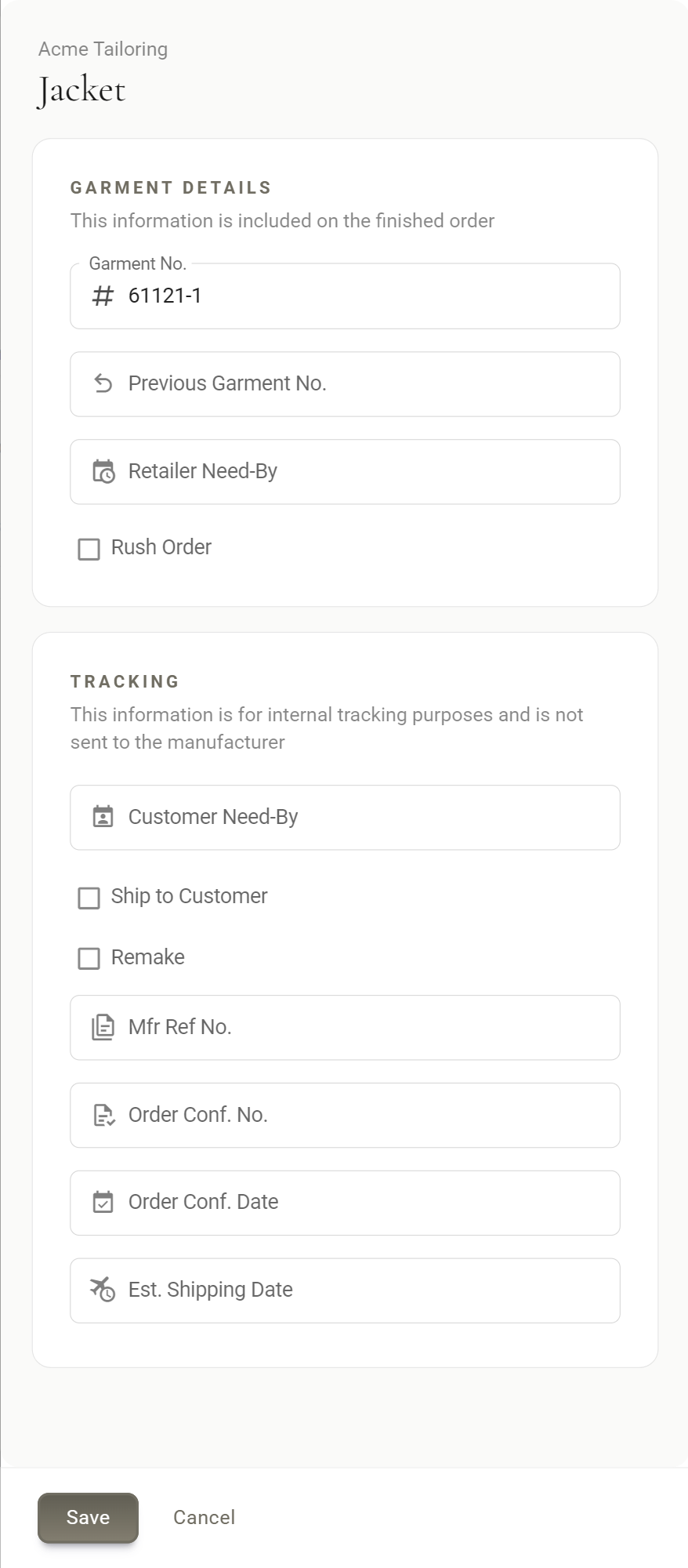
Previous Garment No. is in the same drawer and goes on the finished order. It is where you tell the manufacturer which garment this one repeats. When the old garment was sent, the new one gets that garment's own Previous Garment No., often blank, not its Garment No. Only a reorder of a garment that was never sent fills in the old Garment No. Type in the old garment's number yourself if the manufacturer needs it.
If the manufacturer requires fabric details, the new garment's Style chip reads needs info until you enter the new fabric.
Reorder, Duplicate or Replicate
MTMPRO has three ways to make a new garment from one that already exists. They differ in where you start, whose garments you can copy and whether the fabric comes along. None of them copies measurements: the new garment shows the measurements you keep for the customer on its order, as they are today.
| Reorder | Duplicate | Replicate | |
|---|---|---|---|
| Where you start it | Add Garments on an order, then the Reorder tab. Aria can do it too. | The Duplicate icon on a garment's row on the order. | Add Garments on an order, then the Replicate tab. |
| What you copy from | This customer's garments from orders started before this one. Garments already on this order are not listed. | The garment you clicked. | Any customer's garments, from any of their orders. You find the customer by name. |
| What it copies | The manufacturer, garment type and every style answer. | The manufacturer, garment type and every style answer, with Est. Shipping Date and Mfr Ref No. The fabric too, if you pick Same Fabric. | The manufacturer, garment type, every style answer and the fabric. |
| What it does not copy | The fabric, which you choose again. Est. Shipping Date and Mfr Ref No. start empty. | The fabric, unless you pick Same Fabric. Different Fabric is picked to start with. | Est. Shipping Date and Mfr Ref No. start empty. |
| Whose measurements | This customer's, as they are today. | The same customer's, as they are today. | Those of the customer on this order, not the customer you copied from. |
| Whose order the new garment goes on | The order you have open, for the same customer. | The same order as the original, right under it. | The order you have open, for its customer, whoever wore the original. |
| What you end up with | A new draft garment for each one you count, ready for its fabric. A suit comes across whole. | As many new draft garments as you set under Quantity. For a suit, the whole suit or one piece of it. | A new draft garment for each one you count, in the original's fabric. A suit comes across whole. |
| Who can use it | Owners, admins and associates, on every plan. | Owners, admins and associates, on every plan. | Owners, admins and associates, on the Premier, Scale and Concierge plans and during the Free plan's 30-day Premier trial. Not on Business. |
All three make new garments of their own, and the original keeps its style, fabric and status. Each new garment starts as a draft, and nothing goes to the manufacturer until you send it. Price and Qty are not copied, and the garment number is filled in only when that manufacturer numbers garments automatically for your shop. Edit Info details such as the need-by dates, Rush Order, Remake and Ship to Customer come along, so check them on the new garment. A garment that was already sent can be copied too: the copy starts from the answers as they were sent. On the Free plan, every copy counts toward your 10 garments a month.
Which one to use
- The same suit in a new cloth James Carter wants the navy suit you made him in the spring again, this time in grey flannel. Start a new order for him and use Reorder. The style comes across, you choose the grey cloth, and the suit is made to his measurements as they are today.
- More of a garment already on the order Daniel Reyes is ordering a white shirt today and wants the same shirt in blue and in pink. Use Duplicate on the white shirt, leave Different Fabric picked and set Quantity to 2. The two copies appear right under it, each ready for its own cloth.
- A spare pair of trousers Peter Lang's suit is on today's order, and he wants a second pair of trousers in the same cloth. Use Duplicate, pick the trousers on their own and Same Fabric, then fill in the fabric length, which is left empty for a single piece. This needs an order form for those trousers on their own from the same manufacturer.
- The groomsmen's suits Michael Hale is a groomsman and needs the suit the groom, Tom Becker, ordered, in the same cloth. Open Michael's order and use Replicate: search for Tom and pick his suit. The style and the fabric come across, made to Michael's measurements.
- Exactly the same again Ana Morales wants last year's trousers again in the very same cloth. Reorder would leave the fabric for you to choose again. If your plan includes Replicate, open her new order and search for Ana herself on the Replicate tab: her own garments come up with their fabric. If not, use Reorder and pick the same cloth again.
Good to know
- Earlier orders only The list holds garments from the customer's orders started before the one you are on. Garments already on this order are not in it: use Duplicate for those. Reorder from an old order and anything ordered since is missing too. Start from a new order to see everything.
- Every status is listed Drafts and cancelled garments are listed beside sent ones, with nothing to tell them apart. The date and the fabric help you pick the right one.
- Hidden garment types A garment type hidden for a manufacturer (its Visible switch turned off in that manufacturer's order forms) stays in the list but cannot be picked. It reads This garment type has been disabled and can't be added to orders. The same garment type from another manufacturer can still be picked.
- When one cannot be copied Now and then an older sent garment cannot be copied. The rest are added, and a message says Some duplicate garments could not be added to this order. Add that one from the New tab instead.
- On the Free plan Plus stops once this month's garments and your picks, on all tabs together, reach 10. With 7 added this month, for example, you can pick 3. Once 10 have been added, the Add Garments button above the garments is greyed out.
- In Slack If your shop posts to Slack, a reorder shows up as garments duplicated on the order. See Slack Integration.
More: Duplicating Garments · Replicating Garments · Placing an Order · Customer Wardrobe · Fit Profiles