Slack Integration
Connect a Slack channel and MTMPRO posts there when things happen in your account: new orders, payments, status changes, shipments and more, with a summary of what is due each morning. This page covers connecting a channel, choosing what posts, reading the posts, and who can use it.
What it does
Your team already talks in Slack. With a channel connected, the shop's news arrives there as it happens, so nobody has to keep MTMPRO open to know that a payment came in, a garment shipped or an order is waiting for review.
You pick the channel and you pick the events. Each post says what happened, on which order and for which customer, and who did it. The order number and the customer's name are links straight to that page in MTMPRO.
Once a day, at 8 AM in your time zone, a morning summary lists what is due in the next few days: need-by dates, estimated shipping, alterations and status timers. See the morning summary below.
When you would use it
- The owner is out of the shopSarah is at a trunk show. Her phone shows the deposit James Carter paid, the order that is ready for her review, and the jacket the manufacturer shipped this morning, without her opening MTMPRO.
- The team on the floorFitters and the person placing orders share one channel. When a garment moves to Production or is marked as rush, everyone sees it, along with the note that came with it.
- The morning huddleAt 8 AM the summary lists the customer need-by dates, retailer need-by dates and alterations due this week. The team starts the day from one list instead of searching for it.
- Fabric that did not go outA fabric purchase order that could not be emailed to the supplier is posted with the reason, so the garment does not sit waiting for fabric nobody ordered.
Where to find it
Everything is set up here: the connection, the test message and the switches for each event. Account is in the left-hand menu under Settings, and only the account owner sees it.
Sets when the morning summary arrives: 8 AM in this time zone. With none set, it follows Eastern time.
Posts name every manufacturer by the Display Name you set here, so a channel never shows a maker's own name when you have chosen another.
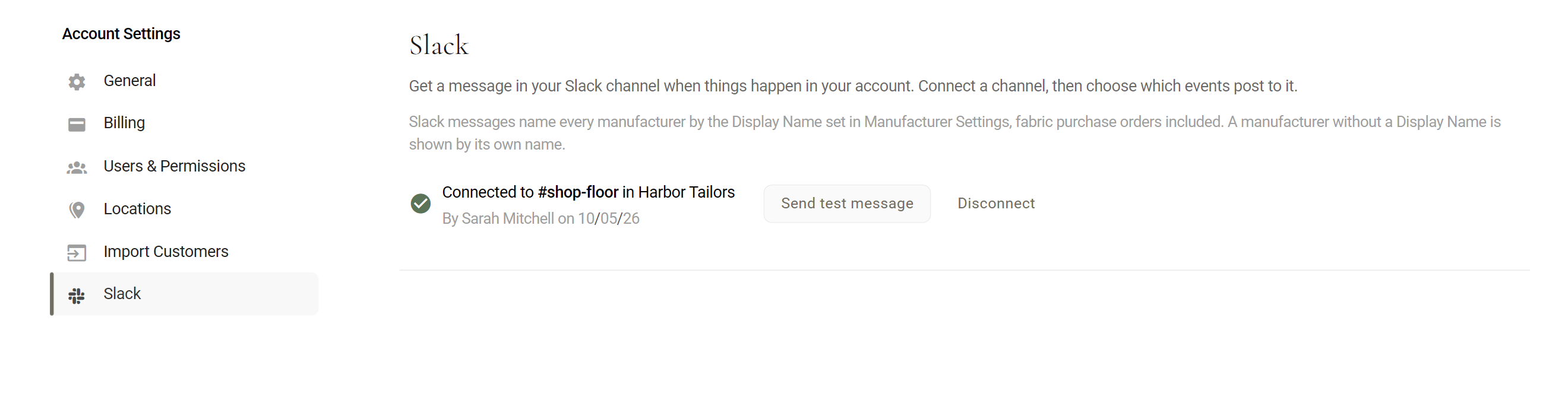
Connect a channel
Create the channel in Slack first if it does not exist yet, for example #shop-floor. Then:
- Open the Slack pageGo to Account, then Slack, opens in MTMPRO.
- Click Add to SlackSlack opens in the same window. Under the button, MTMPRO reminds you that it can only post to the channel you pick and cannot read anything in your Slack.
- Pick the workspace and the channelSlack asks which workspace (if you are in more than one) and which channel MTMPRO may post in. Choose the channel and allow it. Finish within ten minutes: after that the sign-in runs out and you start again.
- Back in MTMPROSlack sends you back to the Slack page, which now reads Connected to #shop-floor with your workspace, your name and the date.
- Send a test messageClick Send test message. A post appears in the channel saying MTMPRO is connected and who sent the test, so you know it reaches the right place.
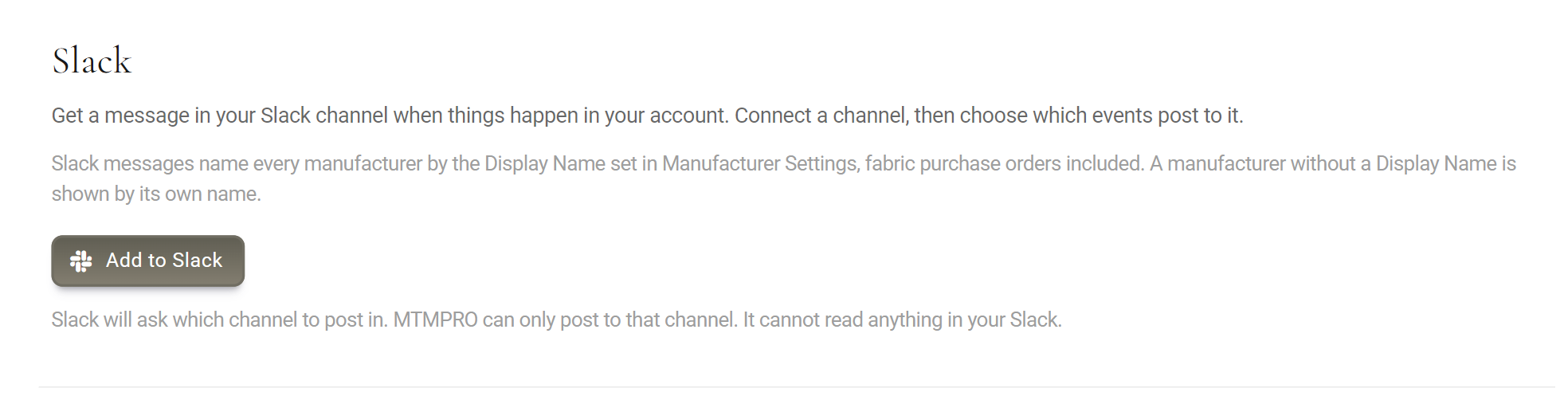
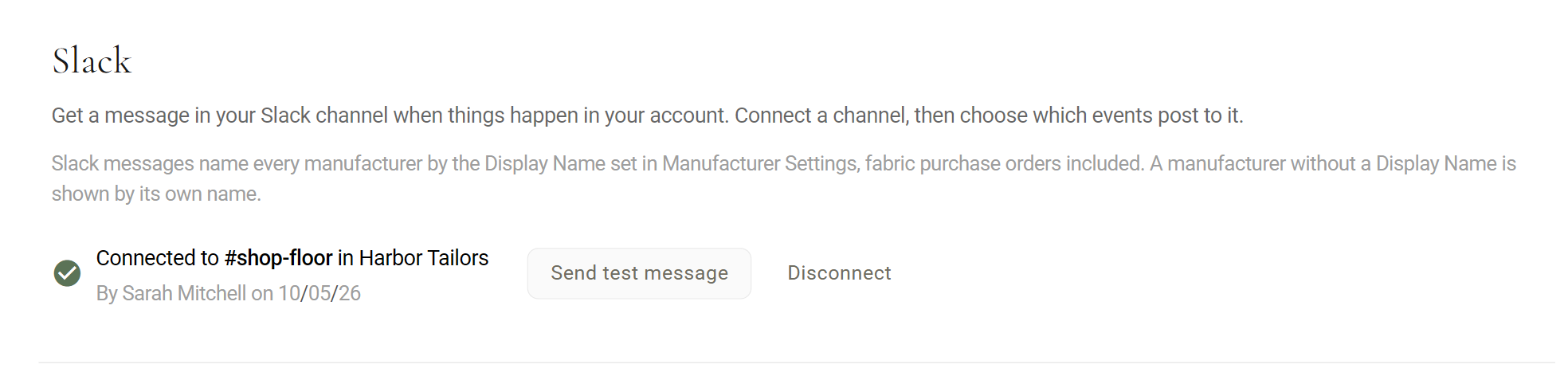
Choose what posts
Under Events there is a switch for every kind of post, in groups: Customers, Orders, Garments, Statuses, Fabrics, Support, Team and the Morning summary. Each switch saves as soon as you change it. A short message at the bottom of the screen confirms it.
Three switches start off: Garment added to an order, Garment deleted and Garment status changed. They happen many times a day and would fill a new channel. Switch them on if your team wants them. Everything else starts on.
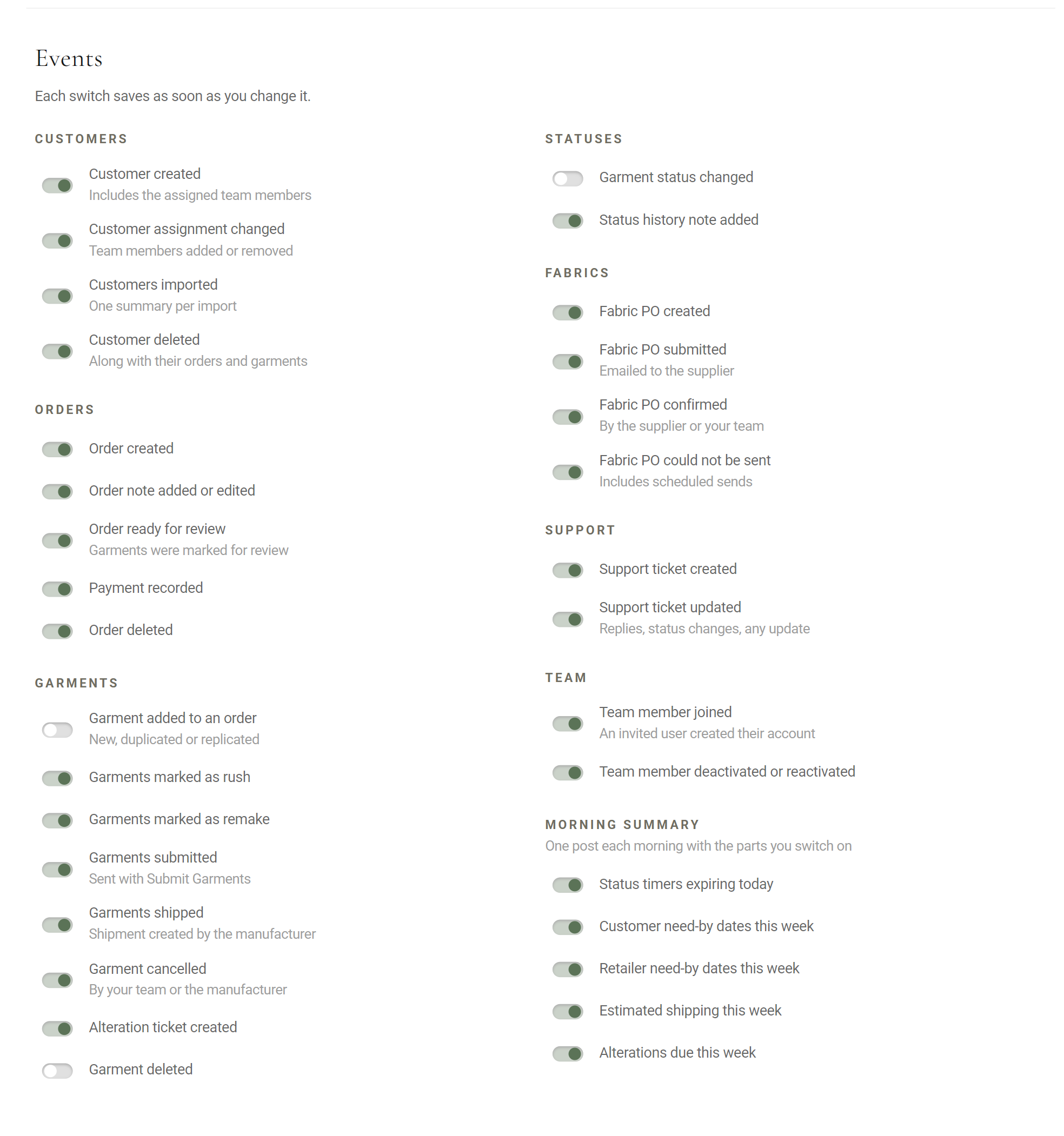
The switches are greyed out until a channel is connected. A switch changes what is posted from then on. Turning one off does not remove posts already in Slack.
What the posts look like
Every post starts with an icon and one line saying what happened, then a few short lines: the garments involved, the old status, the note or the amount, and who did it.
📄 New order #1042 for James Carter
By Sarah Mitchell
🔄 2 garments moved to Production on order #1042 for James Carter
Jacket and Trousers
From Submitted
By Sarah Mitchell
💬 Note added on 2 garments (Production) on order #1042 for James Carter
Fabric arrived, cutting starts Wednesday.
By Sarah Mitchell
💰 Payment of $1,200.00 recorded on order #1042 for James Carter
Receipt 2318 · Balance due $800.00
By Sarah Mitchell
📦 1 garment shipped by House Label on order #1042 for James Carter
Jacket HT-1042-1
UPS · Tracking 1Z999AA10123456784 · To Main Store
A day on one order. The blue order number and name open that order and that customer in MTMPRO.
- Who did itThe last line names the person. A change your manufacturer made reads By the manufacturer, and a change made by MTMPRO's own staff reads By MTMPRO Support.
- Manufacturers by Display NameHouse Label above is a Display Name. Posts use the one set in Manufacturer Settings, opens in MTMPRO, fabric purchase orders included. A manufacturer without one is shown by its own name.
- Which garmentA post about one garment gives its garment number, as in Jacket HT-1042-1. Several garments are listed by type, with a count when they repeat: Shirt x 3.
- Grouped, not one by oneMoving several garments to the same status at once gives one post per order, and a note saved with the change follows right after it. An order note waits until nobody has changed it for a minute, so a note typed and saved a few times posts once. Support ticket updates arrive together, when MTMPRO's email about them goes out.
What each icon means
The icon at the start of a post tells you what kind of news it is at a glance.
A new order, or garments added to one. Added covers new, duplicated and replicated garments.
A status change, and the note that came with it. The speech bubble is also used for replies on a support ticket.
Marked as rush, marked as remake, and the white circle when either is switched back off.
Ready for review, sent and shipped. Sent is garments submitted to the manufacturer, or a fabric purchase order emailed to the supplier.
A payment, an order note and an alteration ticket. The alteration post lists what is being altered and the due date.
Cancelled or deleted. A deleted customer's post says how many orders and garments went with them.
Customers: a new customer, a change to who is assigned, and an import.
Fabric purchase orders: created, confirmed, and could not be sent, with the reason.
A support ticket, a new team member and a deactivated one. A reactivated team member gets a green check.
The morning summary.
The morning summary
One post a day lists what is coming up, so the team can plan without opening the calendar. It is made of the five parts under Morning summary in the switches, and leaves out any you turn off.
🌅 Good morning, Harbor Tailors. Here is what is due as of Thu, Oct 8.
Customer need-by dates this week (2)
• Jacket HT-1042-1 for James Carter · order #1042 · Production · Fri Oct 9
• Shirt HT-1051-2 for Emma Lewis · order #1051 · Submitted · Mon Oct 12
Alterations due this week (1)
• Trousers HT-1038-2 for Daniel Reed · order #1038 · Alterations · Sat Oct 10
- When it arrivesJust after 8 AM in the time zone set under Account, then General, opens in MTMPRO, in Primary Timezone. With none set, it follows Eastern time.
- What "this week" meansToday and the next four days. Status timers expiring today lists today only.
- Where the dates come fromThe same list as the Due Soon card on your dashboard, so the channel and MTMPRO agree. Alterations due are garments in the Alterations status whose alteration ticket is due in those five days.
- Quiet morningsIf nothing is due, nothing is posted that day. Each part shows up to ten lines, then ...and 3 more.
Change or disconnect
- Click DisconnectOn the Slack page, next to Send test message.
- ConfirmMTMPRO stops posting to the channel at once. Your switches are kept.
- To use another channelClick Add to Slack again and pick the new channel. The switches you had come back as they were.
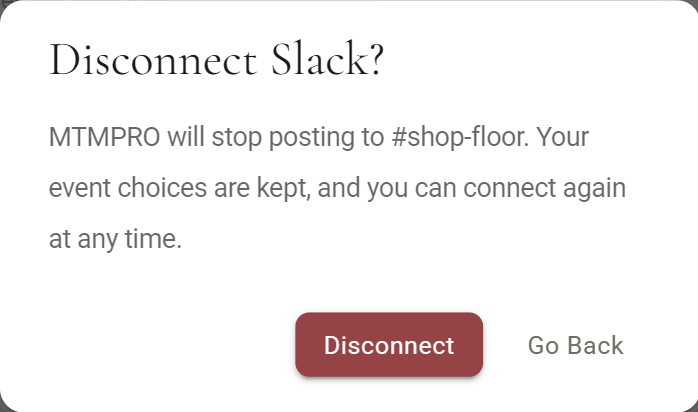
MTMPRO stays in your Slack workspace's list of apps until someone removes it there. Disconnecting stops the posts either way.
Who can use it
Only the account owner can connect a channel and change the switches, since it lives under Account. Everyone in the Slack channel sees the posts, whether or not they use MTMPRO.
Slack Integration is part of the Premier and Scale plans, and of the Free plan's 30-day Premier trial. On any other plan the Slack page shows the upgrade card instead, and View Features & Pricing opens the plans.
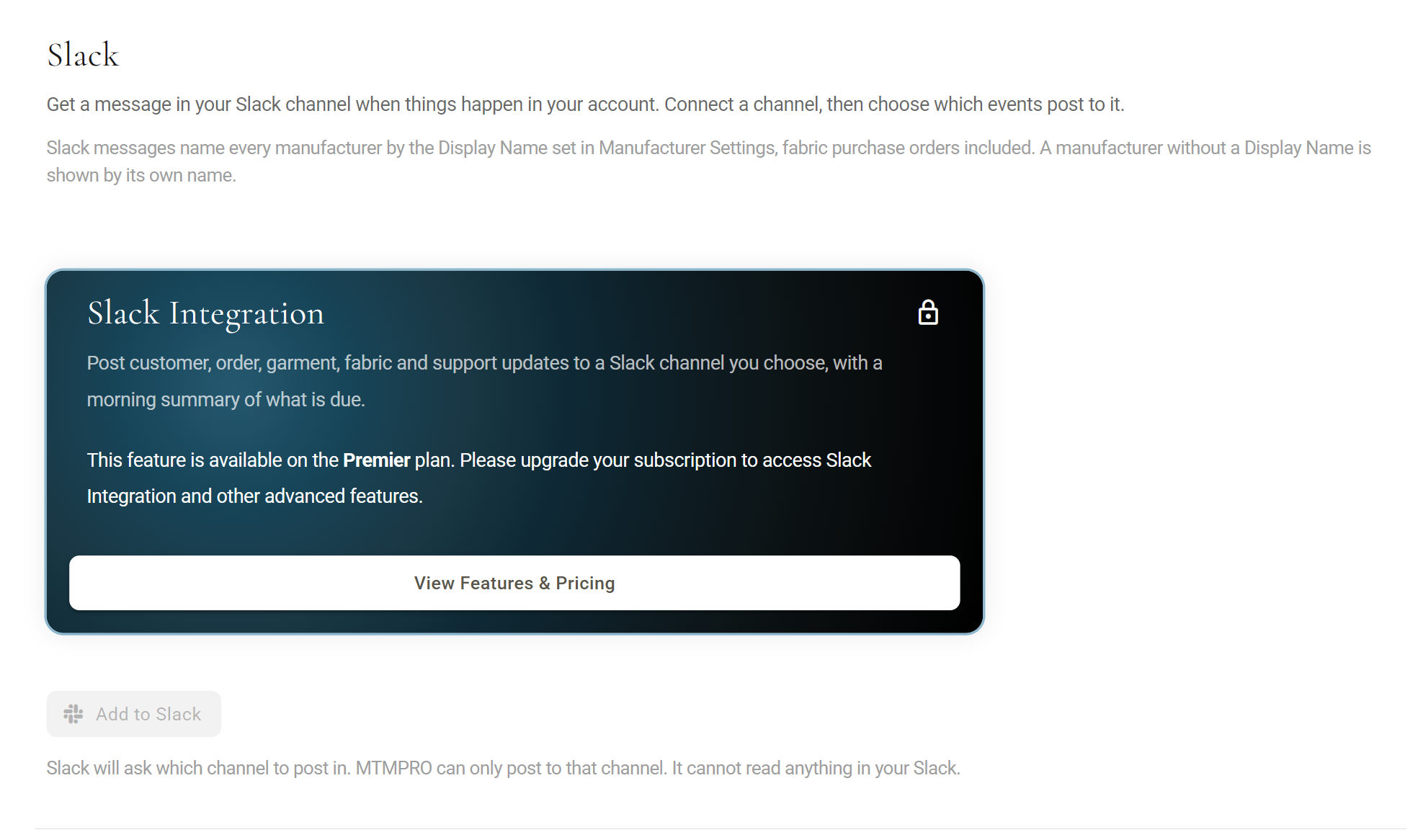
If your plan changes to one without Slack, the connection is kept but nothing is posted. Move back to Premier or Scale and posts start again, without connecting again.
Good to know
- One channel per accountEvery post goes to the one channel you connected. Connecting again replaces it.
- It only postsMTMPRO cannot read messages, see who is in your Slack or post anywhere but the channel you picked.
- Your work never waits for SlackOrders, payments and status changes save as normal even when Slack is slow or down. Anything that could not be posted is not sent later.
- When the channel goes awayIf the channel is archived or MTMPRO is removed from your Slack, posts stop. Send test message then says Slack would not accept the message with Slack's reason. Disconnect and connect again to pick a channel.
- Links need a loginThe order and customer links open MTMPRO, so only people with their own MTMPRO login can follow them.
- Demo modeSlack cannot be connected from demo mode, and nothing done in demo mode is posted.
- Switching off is not deletingTurning a switch off stops new posts of that kind. Posts already in the channel stay there.