Customer Wardrobe
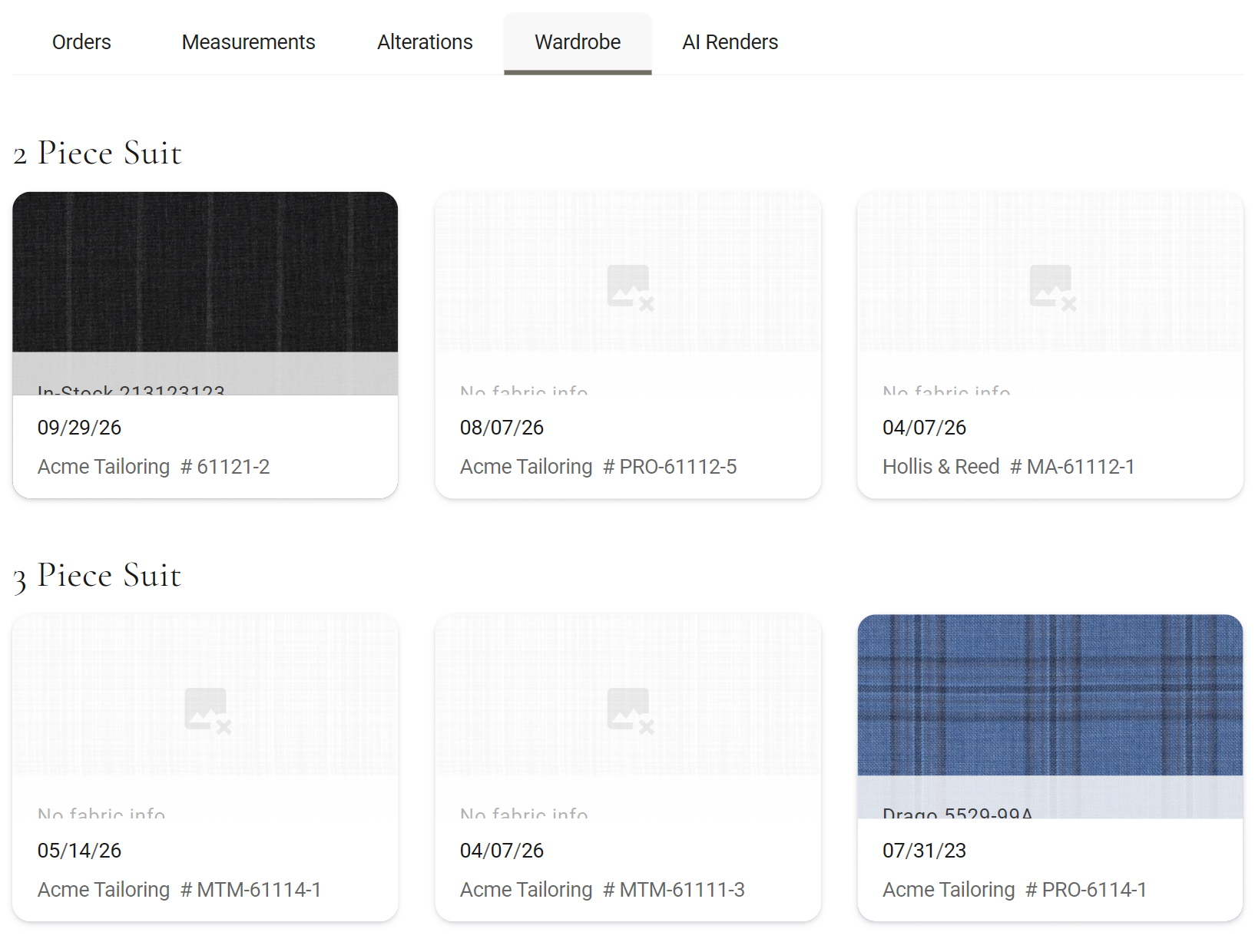
The Wardrobe tab on a customer's profile lays out every garment they have ordered from you, each as a card with its fabric photo, grouped by garment type. This page covers where to find it, what a card tells you, and how to get from a card to its order.
What it shows
The Orders tab tells you what a customer bought one order at a time. The Wardrobe turns that into a picture of everything they own from you: one card per garment, with the fabric photo on top, so you can see at a glance that James Carter keeps coming back for navy suits and has never had a grey one.
Each garment type gets its own heading, such as Jacket, Shirt, Trousers or a suit, in A to Z order. Under each heading the newest garment comes first.
A customer with no orders yet shows This customer has no orders. Add a new order to view all of the customer's garments and fabric images here.
When you would use it
- "The same navy as last time" Daniel Reyes wants another suit in the cloth he had two years ago. Find the suit under its heading by the photo and read the supplier and fabric number off the card. No digging through old orders.
- Planning the next piece At a fitting, scroll through the customer's cards together. It is easy to spot what they wear most and what is missing, and to suggest the next garment from there.
- A call about an older garment The customer cannot remember when they ordered it, only what it looked like. Find the fabric, then go straight to its order for the details.
Where to find it
The fourth tab, after Orders, Measurements and Alterations. Open the customer from the Customers list, or click their name wherever it shows as a link, such as on an order, then click the tab.
Reading a card
Each card is one garment line on an order (a line with a Qty of 2 or more is still one card, and the card does not show the quantity). From top to bottom:
- The photo: the photo of the garment's first fabric, Fabric 1, as added on the order. It is a picture of the cloth, not of the finished garment. A garment with no photo shows a pale woven background with a faint crossed-out picture.
- The strip across the photo: the fabric supplier and fabric number of Fabric 1. It reads No fabric info when neither was entered.
- The date: the day the garment was added to its order, in your account's date format.
- The last line: the manufacturer, under the Display Name your shop set for it if there is one, otherwise its own name, then # and the garment number when the garment has one.
Going to the order
The card is a summary. The full story, with the style choices, measurements, status and the other garments bought at the same time, is on the order.
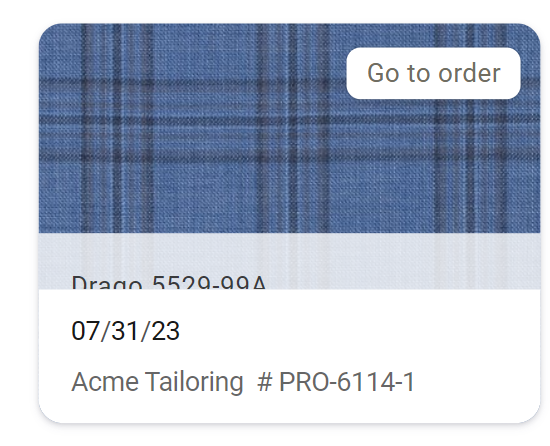
- Point at the card A Go to order button fades in at the top right of the photo.
- Click it The order opens in the same tab. Clicking anywhere else on the card does nothing.
- Come back Your browser's Back button returns you to the Wardrobe.
To order one of these garments again, start a new order for the customer and use the Reorder tab in Add Garments. See Reordering Garments, and Replicating Garments to make one in the same fabric for someone else.
Good to know
- Nothing is edited here The Wardrobe only reads what is on the orders. To fix a fabric photo, supplier or number, change it on the garment in its order. That works until the garment is submitted; after that its fabric is usually locked. The card shows the change the next time you open the tab.
- Only the first fabric A garment with a second or third fabric, such as a contrast lining, shows Fabric 1 only.
- Garment numbers only when garments are numbered Numbers are filled in for you when Automatic Garment Numbers is on in that manufacturer's settings. Otherwise they stay blank unless someone types one in, and the card shows the manufacturer alone.
- Give it a moment The cards load after the tab opens. On a customer with a long history the no-orders line can show for a moment first.
- Every location, your store only Orders from all your shop's locations are included. Garments the customer bought elsewhere are not.
- Who can see it Owners, admins and associates. An associate set to Restricted access to assigned customers and new customers added by this user can only open those customers, so only sees their wardrobes.
- Dates follow your account The date on each card uses the Date Format chosen in your Account settings, opens in MTMPRO.
More: Adding and Editing Customers · Placing an Order · Garments Screen · AI Renders