Account Settings
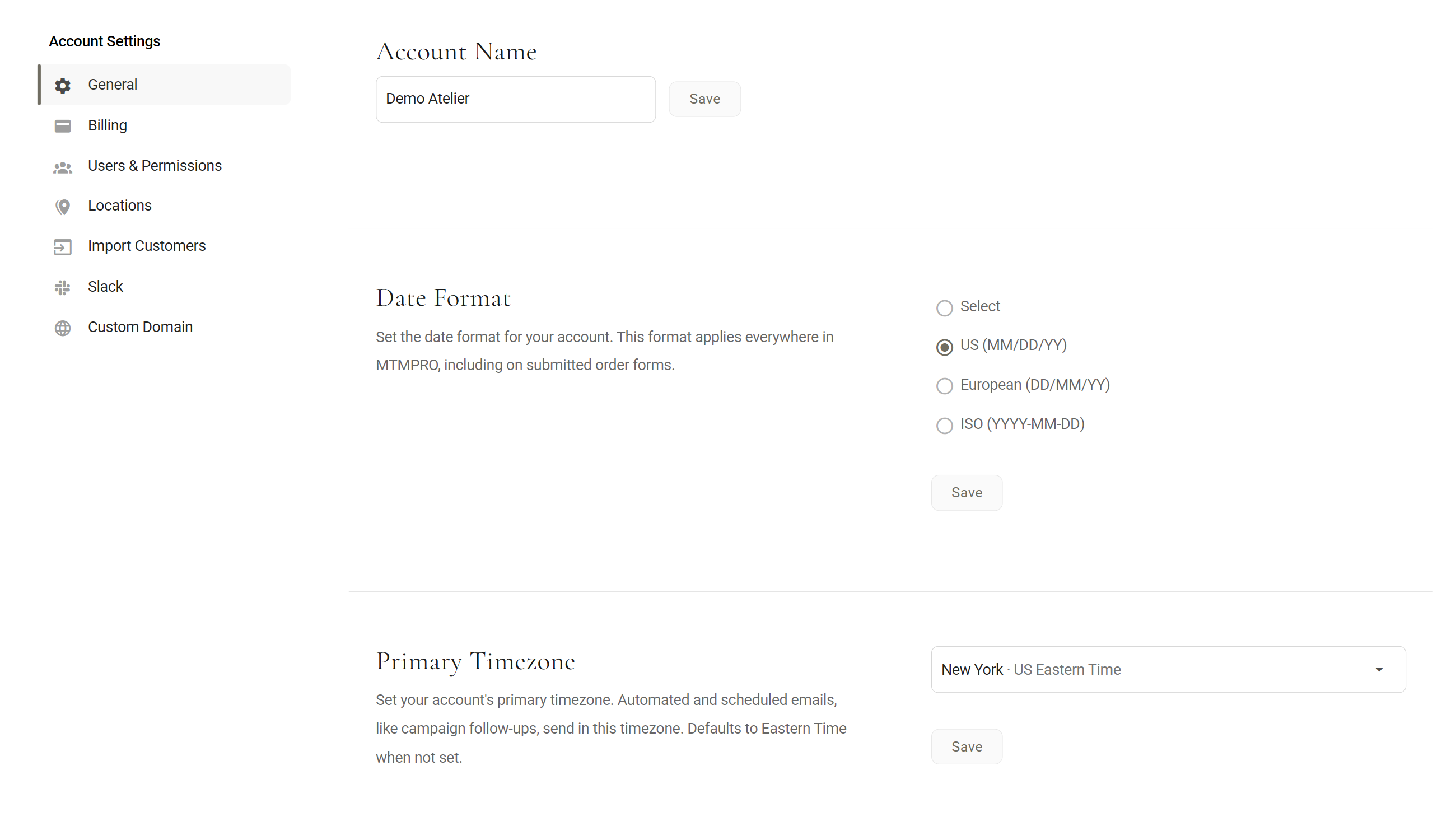
The General tab of Account Settings holds four things that apply to your whole account: its name, its logo, how dates are written and your shop's time zone. This page covers what each one changes, how to set it, and where the other Account tabs are.
What it holds
General is the first tab of Account Settings, and the one the page opens on. Its four settings belong to the account, not to one person or one location, so whatever you pick here is what your whole team sees.
- Setting up a new account The name starts as the business name you signed up with, and the time zone is empty, so MTMPRO runs on New York time. Check both on day one and add your logo.
- A shop outside the US A tailor in London wants 14/10/26, not 10/14/26, on screen and in the spreadsheets they download, and the Slack morning summary at 8 AM London time.
- A new trading name Demo Tailors becomes Demo Atelier. Change the name and logo here once: the new logo goes to the top of every page, and every PDF downloaded and fabric purchase order sent from then on carries the new name.
Where to find it
Account is in the left-hand menu under the Settings heading, below Settings itself. It opens on General. A red ! beside Account means a billing notice is waiting at the top of the page; see Billing.
Your account name and logo
They do different jobs. The name goes on the paperwork and emails other people read. The logo is mostly for your team, at the top of the app, and for the pictures you show customers.
Where the name shows
- At the top of every page, in capitals, when you have no logo. On a phone it is left out to save room.
- On order PDFs (Download PDF in a garment's menu): the Account line, and the footer of every page beside the customer's name and the garment number.
- In the spreadsheet from Download Excel: the Account row.
- In the subject of each fabric purchase order email: Purchased Order from Demo Atelier.
- At the end of your weekly summary email's subject line.
- In the Slack morning summary, which opens Good morning, Demo Atelier.
- Beside your orders, for manufacturers who work in MTMPRO.
Changing the name
Use the name your suppliers and manufacturers know you by, because they are the ones who read it.
- Type the new name In Account Name, replace the name. Pressing Enter does not save.
- Click Save The Save beside the box. It is greyed out while the box is empty, because an account always has a name. You see Store name updated and the page reloads.
Where the logo shows
- At the top of every page, in place of the name, on every screen size.
- Faint and grey in the middle of the screen while a page loads.
- On AI renders, in the lower right corner, as a white see-through mark. Renders already made keep the logo they were made with.
It is not printed on order PDFs or spreadsheets, which carry the name. MTMPRO's emails carry MTMPRO's own logo. The sign-in page has a logo of its own, which comes with a Custom Domain.

Adding or changing the logo
- Upload Image Under Account Logo, click Upload Image and pick the file. It appears in the dark box.
- Crop, if you need to Click Crop at the top left of the picture, drag the frame over the part to keep, then click the Save on the picture. That only trims the preview. The frame keeps the picture's shape, so it trims a border; it cannot turn a square logo into a wide one.
- Click Save The Save under the box keeps it. You see Image has been uploaded, then Store logo updated, and the page reloads with your logo at the top.
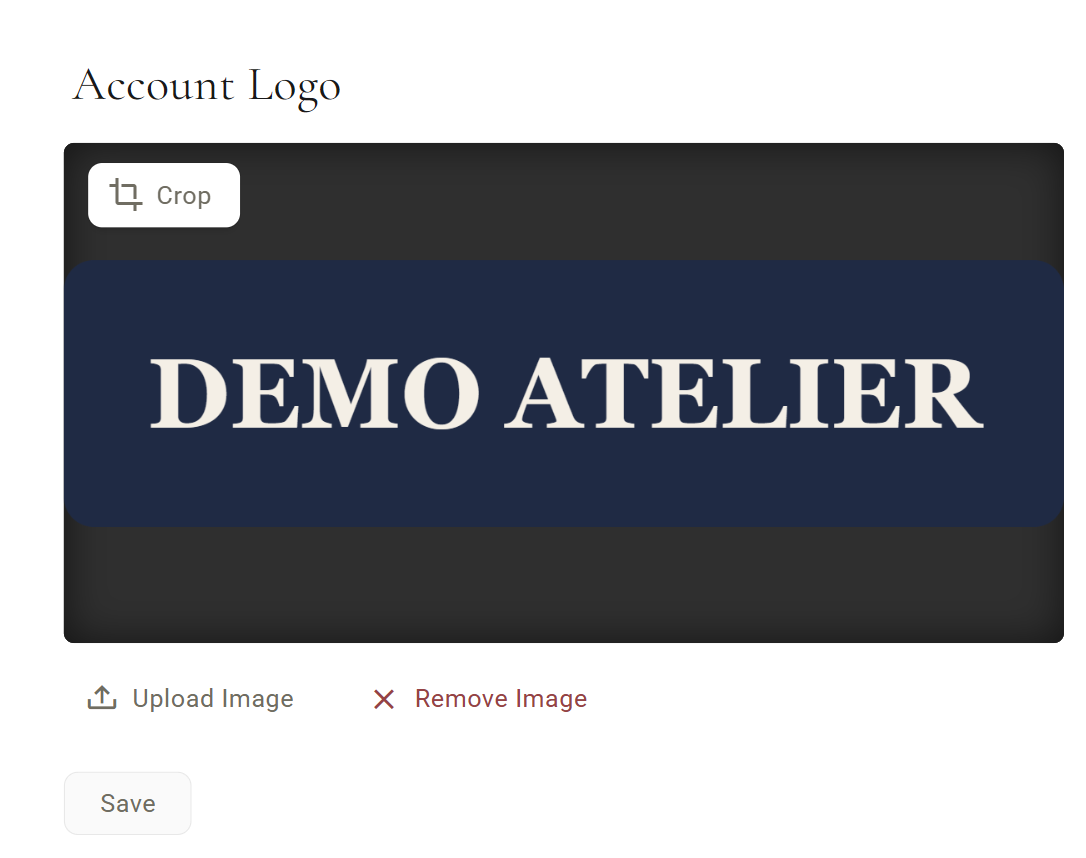
To remove the logo, click Remove Image, then Save. The account name comes back at the top of the app.
The top bar is white and slim, and the logo is shown small in it. A wide logo, dark on a white or clear background, reads best. The preview box is dark grey, so a dark logo looks faint there; that is only the preview.
Date format
Pick how dates are written for everyone in your account: on lists and pages, in exports, in the spreadsheet from Download Excel (ISO comes out as 2026/10/14 there), and when Aria reads or writes a date. The order PDF from Download PDF always writes dates month first. New accounts start on US.
US (MM/DD/YY). Month first, then day, then year.
European (DD/MM/YY). Day first, then month, then year.
ISO (YYYY-MM-DD). The full year first, then month, then day.
The same day, October 14, 2026, written each way.
- Pick a format One of the three. Select at the top is not a format: saved on Select, dates show the US way.
- Click Save You see Date Format updated, and dates change straight away, without a reload.
Primary timezone
MTMPRO keeps one clock for your whole account, and these read your time zone from here:
- The Due Soon list on your dashboard counts the next five days from your today.
- The Slack morning summary arrives at 8 AM your time.
- Measurement history starts a new day at your midnight.
- Aria's "today" is your today, so "due tomorrow" means your tomorrow.
- MTMPRO's own scheduled emails to your team, such as welcome emails, go out by your clock.
Until you pick one, all of these run on Eastern Time (New York).
- Search for your city Click in the Primary Timezone box and type a city, a country or an abbreviation. Nearby cities work too: "boston" finds New York, "dallas" finds Chicago, "delhi" finds Mumbai.
- Pick it Each city shows the time there right now and its offset from GMT.
- Click Save You see Timezone updated.
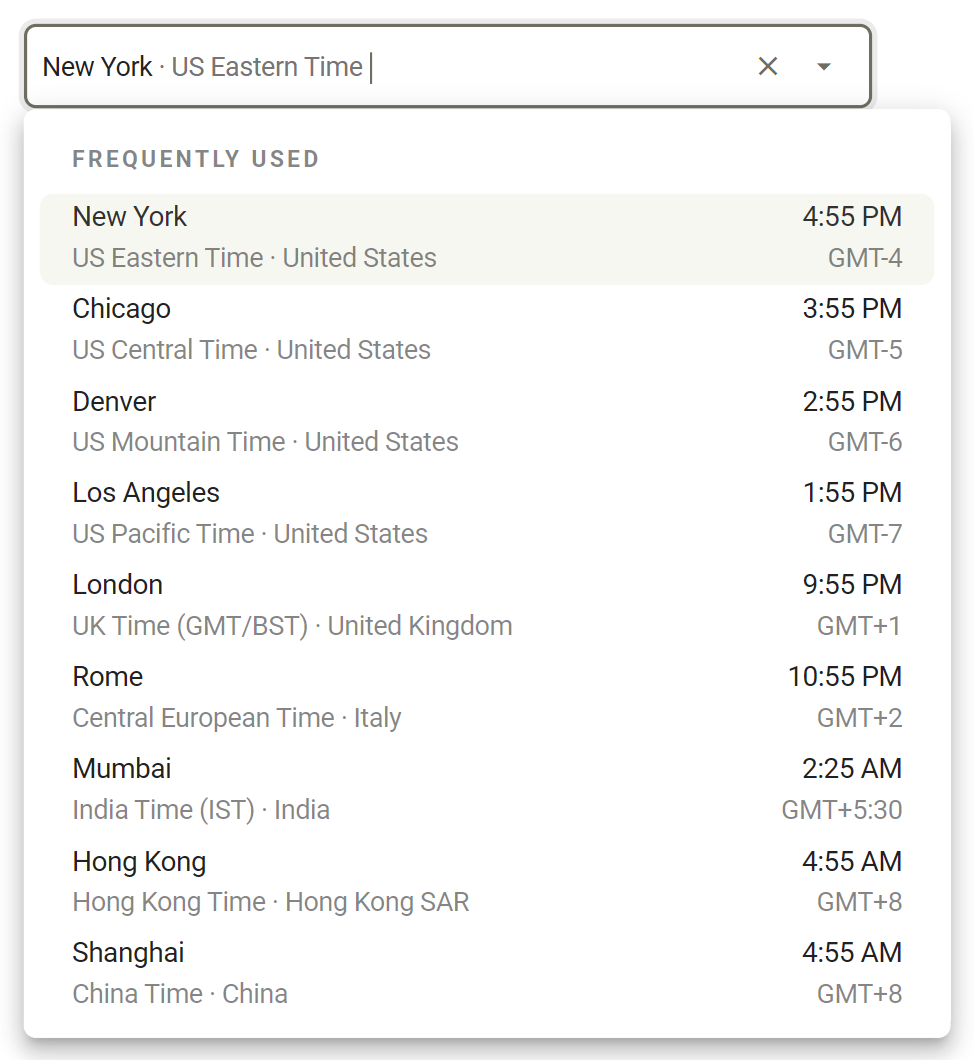
The list starts with the zones most shops pick, then Americas, Europe & Africa, Asia & Pacific and UTC under Other. To go back to Eastern Time, clear the box with the x and click Save.
Fabric purchase orders sent on a schedule keep a time zone of their own, under Settings / Purchase Orders, opens in MTMPRO, Automatic Scheduling.
The other Account tabs
Everything else about the account sits in the same menu, one tab per job. An arrow beside Slack or Custom Domain means your plan does not include it.
Not on this tab
- Imperial or metric for master measurements: Settings / Master Measurements, opens in MTMPRO, Unit Preference.
- The address replies to your order emails go to: each manufacturer's Order Sending tab, under Settings / Manufacturer Settings, opens in MTMPRO.
- The logo and background on your sign-in page: Custom Domain.
Who can use it
Store owners. Account is only in the left-hand menu for people with the Owner permission, and a link to it opens an empty page for admins and associates. They see the name, logo, dates and time zone everywhere, but cannot change them. General is part of every plan.
Good to know
- One of each for the whole account One name, one logo, one date format and one time zone. Locations do not get their own.
- Logo files under 7 MB A file over the upload limit (7.5 MB), or any upload that fails, shows Error: Image exceeds the maximum file size of 7 megabytes, and the account is left without a logo. Keep the file under 7 MB to be safe.
- Crop is for the first logo The Crop button only appears when the account has no logo yet, and only once. Trim a replacement to size before you upload it.
- From now on, not backwards PDFs and spreadsheets downloaded after a change carry the new name, and spreadsheets also carry the new date format. Emails already sent and files already downloaded keep the old ones.
- Manufacturers keep their own date style People at a manufacturer who work in MTMPRO choose how dates show on their own screens.
- Emails already under way keep their timing A welcome series that has started keeps the time zone it started with. Only new ones follow a change.
- On a phone, only General The Account menu needs a wider screen. On a phone the page opens on General with no menu, so use a tablet or computer for the other tabs.
More: Getting Started · Billing · Custom Domain