Custom Domain
Run MTMPRO on your own web address, with your own logo and background on the pages your team sees before they sign in. This is how to connect the address, what the records you are asked for do, and what changes once it is live.
What it does
Normally your team signs in at my.mtmpro.com. With a custom domain the app also opens at an address of your own, such as app.demoatelier.com, and the pages people see before they sign in carry your logo, your background and your store's name on the browser tab. After sign-in it is the same app with the same customers, orders and settings. Nothing moves.
Once the address is connected, the links MTMPRO sends out use it too: invitations to new team members, password reset emails, your weekly summary, fabric purchase order confirmations, support ticket updates, and the messages it posts to your Slack channel. Someone who clicks one of those lands on your address, with your logo on the page.
my.mtmpro.com keeps working alongside it. Both addresses open the same account, so nobody is caught out by an old bookmark.
When you would use it
A new associate's first day. You invite them from the Users tab as usual. The invitation links to app.demoatelier.com, the page they land on carries your logo, and that is the address they sign in at from then on. The software never introduces itself under another name.
A forgotten password on a Saturday. The fitter asks for a reset from the sign-in page. The email links to your address and the page it opens looks like your shop, so nobody wonders whether the email is genuine.
The Slack channel. When a customer is added or an order moves, the message in your channel links to the customer or the order at your own address, so a tap on a phone opens the shop's app, not a stranger's.
Where to find it
Open your account settings from the menu and pick Custom Domain. The tab is always listed. On a plan that does not include it, an arrow sits beside the name and the tab explains what it offers.
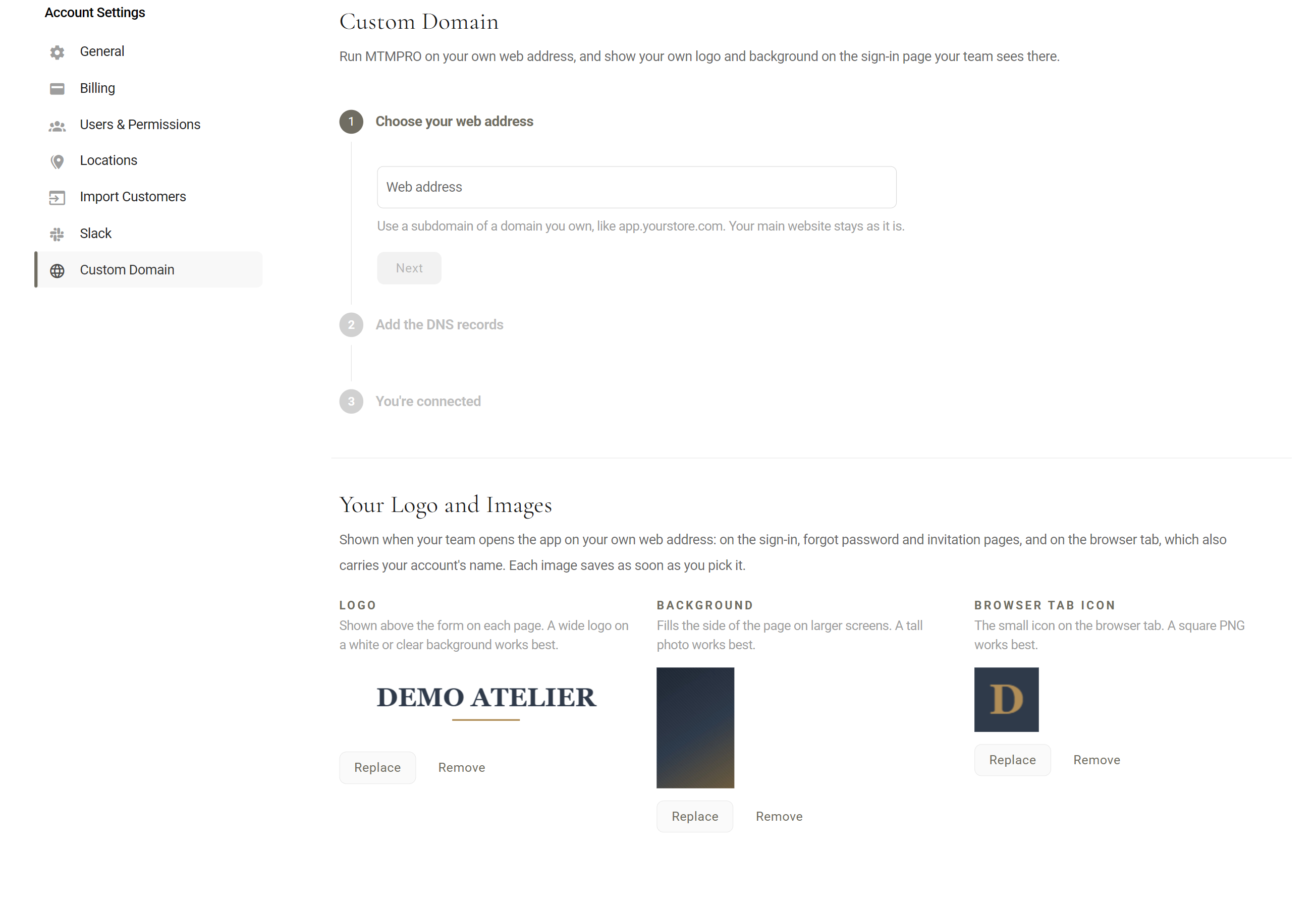
Connecting your web address
You need a domain you own, and a sign-in for wherever that domain is managed. That is usually the company you bought it from, such as GoDaddy or Cloudflare. If you are not sure which company that is, the tab works it out and names it for you at step two.
The address should be a subdomain of your domain, such as app.demoatelier.com. Your website at demoatelier.com stays exactly as it is.
- Choose your web addressType the address into the field and click Next. While you type, the field shows https:// in front of it, so you only enter the address itself.
- Add the DNS recordsThe tab names the company that manages your domain and shows the records to add there. Sign in to that company, open the DNS settings for your domain, add each record exactly as shown, and save.
- Wait for the checksThe tab watches the address and ticks off each check as it passes. This usually takes 5 to 10 minutes. You can leave the page and come back.
- You're connectedThe last step shows the address your team can now sign in at, with an Open button to try it.
Step 1: choose your web address
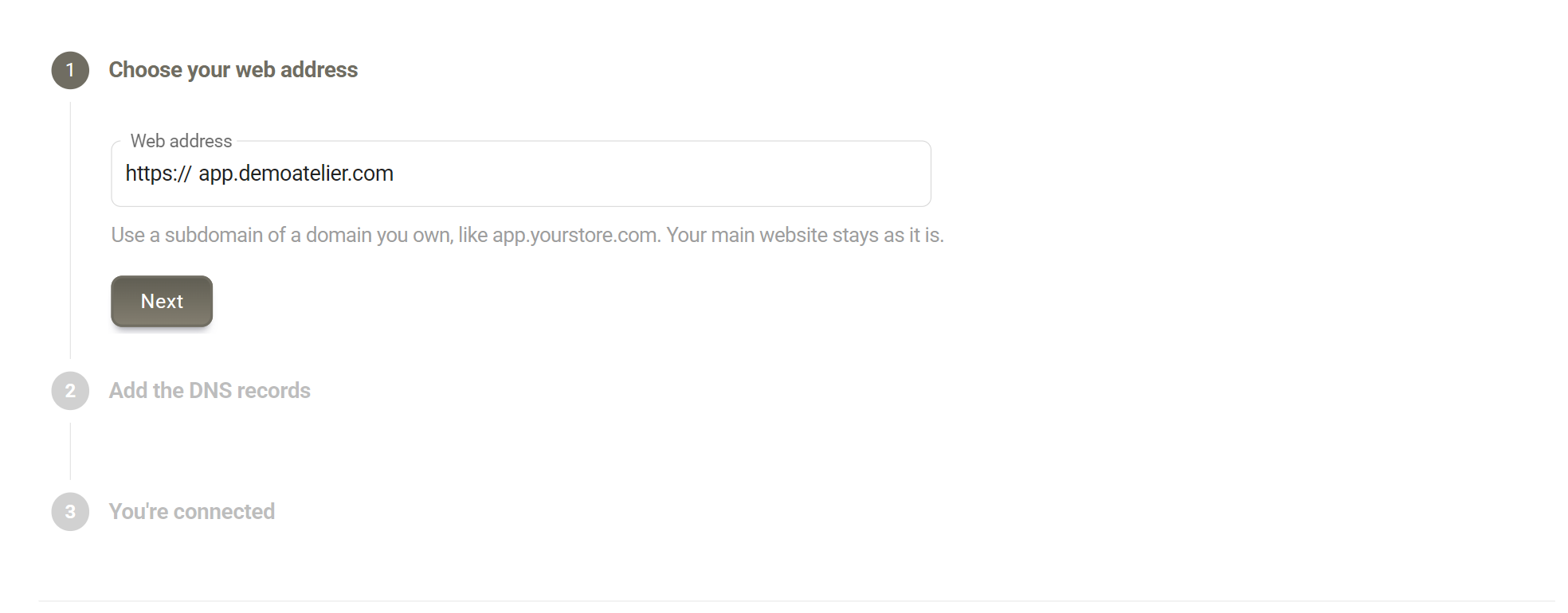
If the address is not usable, the tab says why: Enter a web address like app.yourstore.com. when it is not a web address at all, and That web address is already connected to another MTMPRO account. when another store has it. Only one address can be connected at a time, so if you already have one you are asked to remove it first.
Step 2: add the DNS records
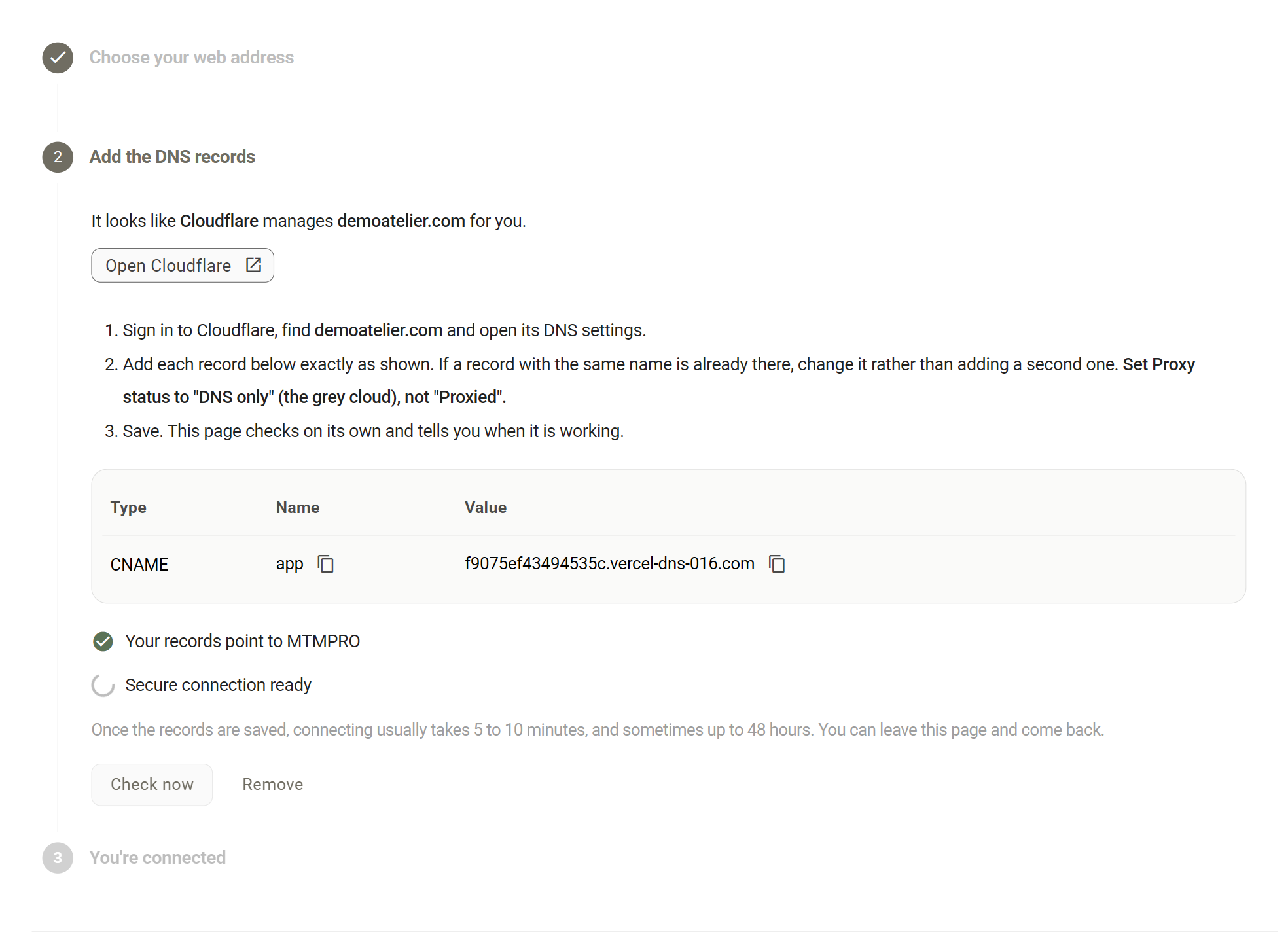
A DNS record is a line in your domain's settings that says where an address should go. The one you add here points app.demoatelier.com at MTMPRO. Nothing else about your domain changes.
In your DNS company's settings, add each row from the table: the Type, the Name and the Value, exactly as shown. If a record with the same name is already there, change it rather than adding a second one. Then save. Usually it is a single record.
Step 3: wait for the checks
Once the record is saved, the tab checks the address on its own every half minute while it is open, and ticks each line of the checklist as it passes. Your records point to MTMPRO passes first, usually within minutes. Secure connection ready passes once the address works with the padlock in the browser, which can take a few minutes more. Check now looks straight away.
Connecting usually takes 5 to 10 minutes from saving the record. Occasionally a DNS company takes up to 48 hours to pass a change on. You do not need to stay on the page: come back later and the tab shows wherever things have got to.
Step 4: you're connected
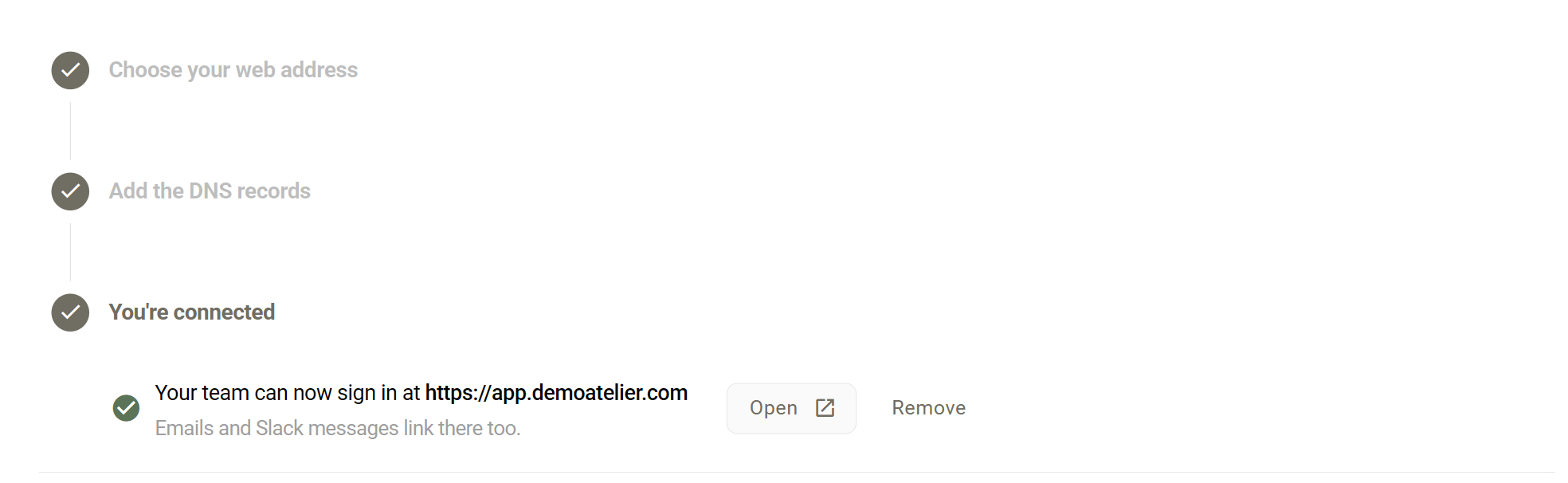
Tell your team the new address, or let them find it through the next invitation or email. my.mtmpro.com still works for anyone who has it bookmarked.
Your logo and images
Below the steps, Your Logo and Images holds the three images shown when someone opens the app at your own address. Each one saves the moment you pick it, and can be replaced or removed at any time. You can upload them before the address is connected; they show as soon as it is.
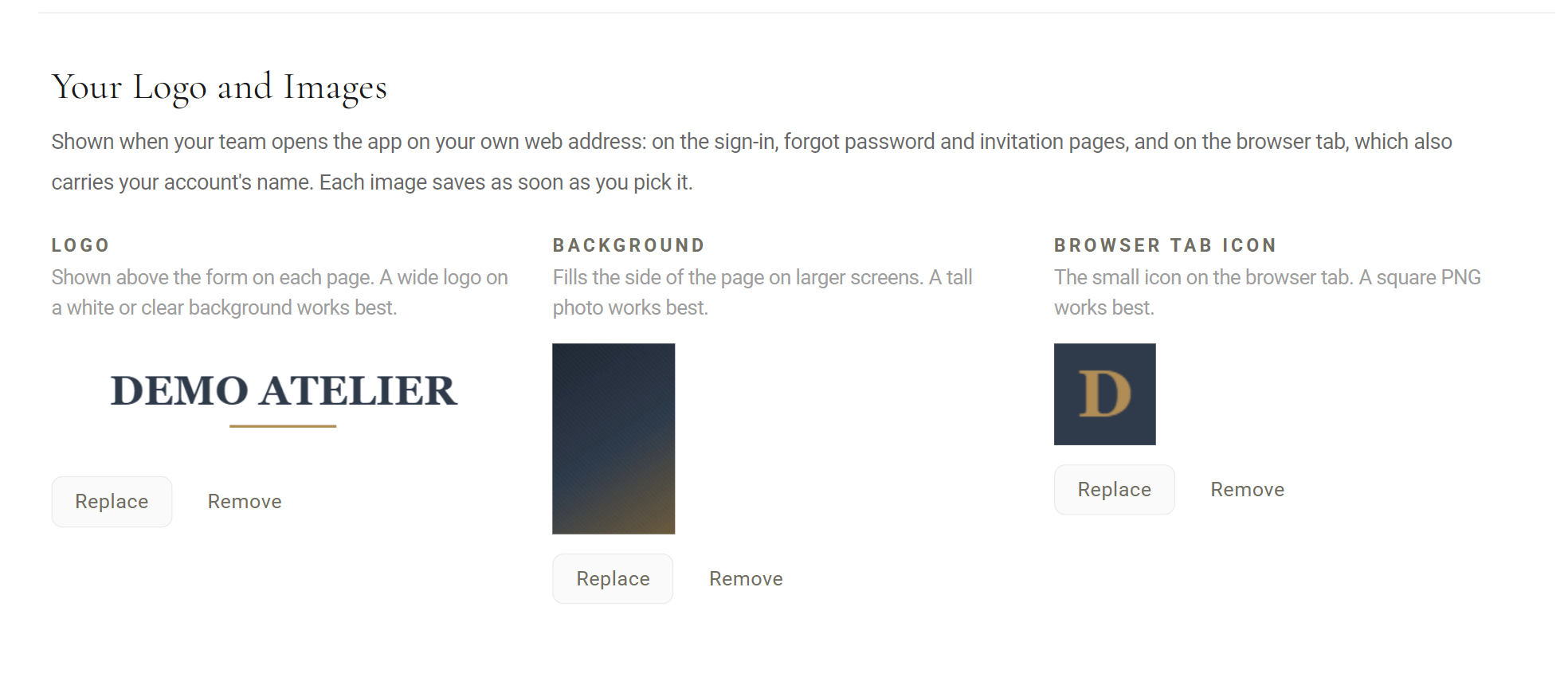
Shown above the form on the sign-in, forgot password and invitation pages, in place of the MTMPRO name. A wide logo on a white or clear background works best.
Fills the side of those pages on larger screens. A tall photo works best, since it is cropped to the height of the window.
The small icon on the browser tab, next to your store's name. A square PNG works best.


At my.mtmpro.com everyone still sees MTMPRO's own logo and background. Your images only show on your own address.
Removing the address
Remove sits on steps two and three. It asks before doing anything.
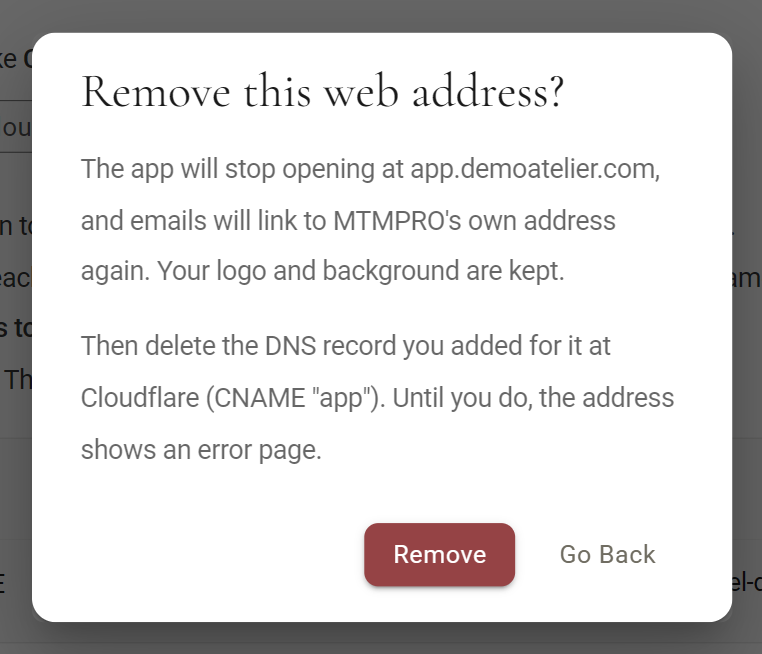
After Remove, the app stops opening at that address and emails and Slack messages link to my.mtmpro.com again. Your logo and images are kept, ready for the next address. Then go back to your DNS company and delete the record you added. Until you do, the address still points at MTMPRO's hosting and shows an error page rather than nothing at all.
To move to a different address, remove the current one first, then start again at step one.
What each part means
The arrow beside Custom Domain in the Account menu. Your plan does not include it yet. The tab still opens so you can see what it does, and it shows which plan it comes with.
A green tick in the checklist. That check has passed. When every line is ticked, the tab moves on to You're connected by itself.
A grey circle in the checklist. Still waiting. The tab looks again every half minute while it is open, or straight away when you click Check now.
An extra line that only appears when the address has been used with another website before. The table then has a second record, of type TXT, which proves the domain is yours. Add it like the first one.
A button straight to your DNS company's own site, named after whichever company the tab found. If it cannot tell which company manages your domain, the instructions say your domain provider instead and there is no button.
Who can use it
The store owner. Account settings are the owner's, and the Custom Domain tab sits with them. Associates and admins never see it, though everyone on the team uses the address once it is connected.
Custom Domain is included with the Scale plan. On any other plan the tab still opens, with this at the top and the rest greyed out:
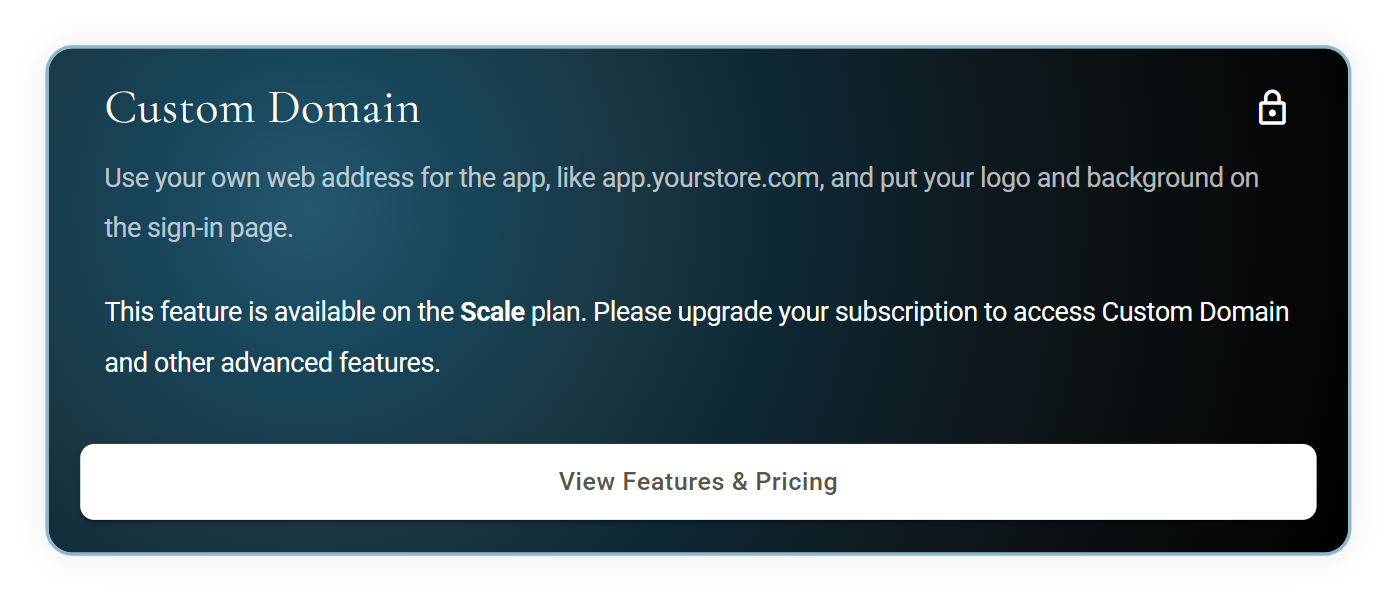
If you connect an address and later move to a plan without Custom Domain, the address keeps working so nobody is locked out, and emails keep linking to it. Your logo and images stop showing until you are back on Scale. You can remove the address on any plan.
Good to know
- One address per accountTo change it, remove the current one and then add the new one.
- Use a subdomain you ownSomething like app.demoatelier.com or orders.demoatelier.com. Your main website keeps its address, and MTMPRO's own addresses cannot be used.
- It takes a little timeUsually 5 to 10 minutes after the record is saved, sometimes up to 48 hours if your DNS company is slow to pass changes on. Nothing is wrong while the checklist is still waiting.
- Cloudflare: DNS onlyOn Cloudflare the record must have Proxy status set to DNS only, the grey cloud. With the orange cloud on, the secure connection check never passes.
- If the tab cannot check the addressNow and then step two reads could not be checked just now. Try again in a minute. The address is not lost. Wait a moment and click Check now.
- Delete the record after removing the addressRemoving the address in MTMPRO does not touch your DNS. Until you delete the record at your DNS company, the address shows an error page.
- What stays as it isThe app after sign-in looks the same as it does today. Emails keep MTMPRO's own look; only the links in them change. Signing up for a new MTMPRO account still happens at MTMPRO's own address.
- Your images only show on your addressAnyone who signs in at my.mtmpro.com sees MTMPRO's own logo and background. The account is the same either way.
More: Getting Started