Keyboard Shortcuts
A few keys save a lot of clicks, most of all in the style and measurement forms, where you can take a whole set of measurements without touching the mouse. This page lists the main ones, grouped by the screen they work on.
When they help
Two people get the most from them. The fitter at the mirror, entering numbers while the customer stands still: type the chest, press Enter, and the next measurement is ready. And whoever is at the counter when someone walks in: type the name, press Ctrl+O, and you are on a new order for them.
Wherever this page says Ctrl, press Cmd (⌘) on a Mac.
Adding a customer
In the Add Customer window (New, then Customer, or Add Customer on the Customers, opens in MTMPRO page) each save button has a key. They work while you are still typing in a field, so the last thing you type can be the name.

| Keys | What it does |
|---|---|
| Ctrl + S | Saves, then opens their profile. Same as Go to Profile. |
| Ctrl + O | Saves, then starts a new order for them. Same as Add Order. |
| Ctrl + M | Saves, then opens their measurements. Same as Measurements. |
| Ctrl + A | Saves, then opens Master Measurements. Only when your shop uses the master measurement form. |
| Ctrl + S, in Edit Customer | Update Customer. Does nothing until you have changed something. |
If First Name, Last Name or another required field is empty, nothing is saved and the field is marked in red.
On an order
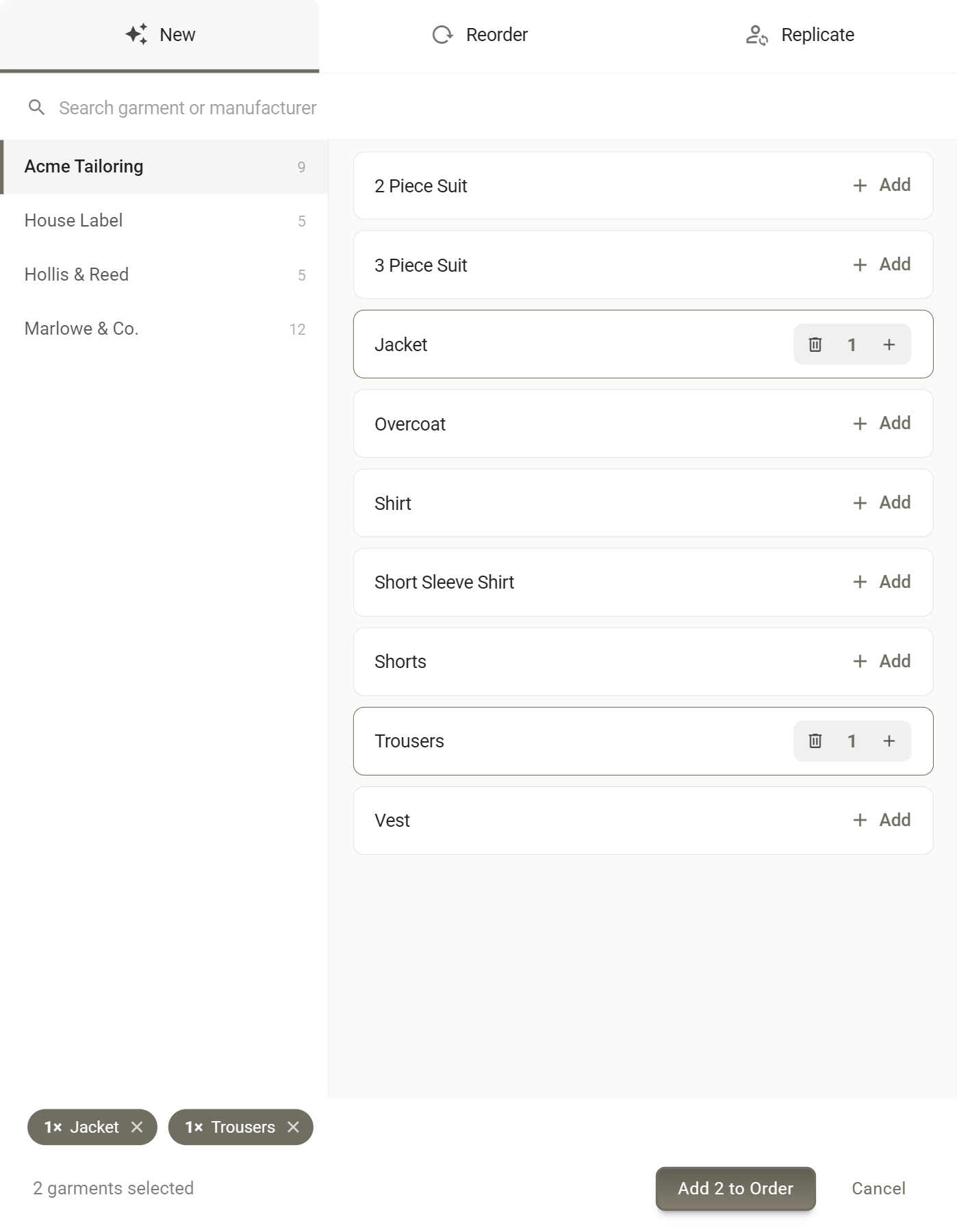
Adding garments is the step you repeat most on an order, opens in MTMPRO, so it has a key of its own, and the window it opens answers to Enter.
| Keys | What it does |
|---|---|
| Ctrl + G | Opens Add Garments from anywhere on the order page. |
| Enter, in Add Garments | Adds what you picked, same as the button that reads Add 2 to Order. Works on the New, Reorder and Replicate tabs, and does nothing until you have picked something. |
| Enter, in the fabric panel | Saves the fabric, same as Save. The panel opens from the fabric on a garment row. |
| Esc, in Review Garments | Closes the preview, same as Close. |
More: Placing an Order
Style and measurement forms
These keys work in a garment's style and measurement forms (the Style and Measure buttons on a garment row), in a customer's measurements, and in Master Measurements. They are made for taking measurements: type a number, press Enter, type the next.
| Keys | What it does |
|---|---|
| ↓, Enter or Tab | Next question. |
| ↑ or Shift + Tab | Previous question. |
| Ctrl + F | Jumps to the search box, to find a question by name. |
| Space | Ticks or unticks a Checkbox question. |
| Backspace, in a number | Takes off the fraction first, so 42.25 becomes 42, then one digit at a time. |
| Enter, in an Apply window | Applies the template or try-on size you picked, same as Apply Template or Apply Try-on Size. |
| Esc | Same as Done. |
A question with two boxes, a measurement plus an allowance or a height in feet and inches, takes you to its second box first, then on to the next question.
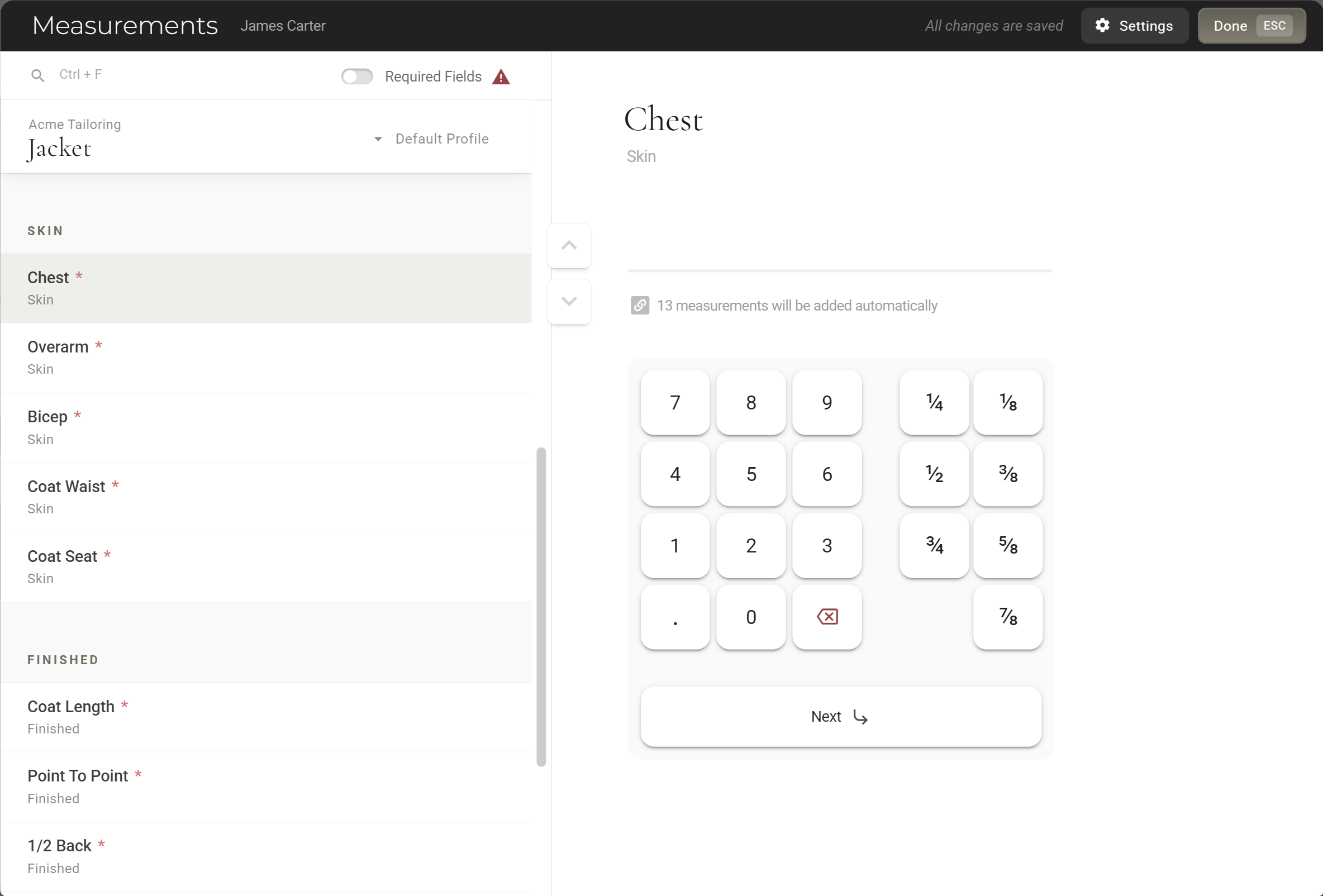
With Auto Advance on (under Settings at the top of the form), picking an answer in a Select One question moves you on by itself, so there is not even an Enter to press.
Building order forms
For whoever sets up the forms, in the Form Builder (Settings / Manufacturer Settings, opens in MTMPRO, then a garment's form). Typing a long list of options is where they pay off.
| Keys | What it does |
|---|---|
| Ctrl + S, in Edit Field | Save. |
| Ctrl + I, in Edit Field | Add Items, on a Select One or Select Many field. |
| Enter, in Add Items | Adds the item to the list and puts you back in the name box for the next one. Not while you are typing a description. The same in a trimming library. |
| Enter, in Edit Item | Save. |
| Ctrl + F, in logic | Jumps to Search Fields in the condition you last clicked. |
| Enter, naming a section | Saves Add Section, Edit Section, Add Tab Section or Edit Tab Section, once it has a name. |
More: Using the Form Builder · Field Types · Logic
Everywhere else
Aria
| Keys | What it does |
|---|---|
| Enter | Sends your message. |
| Shift + Enter | Starts a new line instead. |
| 1 to 9 | When Aria asks you to choose, picks that choice. |
| ↑ ↓ | Moves between the choices, on a question with one answer. |
| Enter, on a question | Sends the choice you picked. |
| Esc, on a question | Skips it, same as Skip. |
| Esc, Aria expanded | Shrinks her back to the corner. |
More: Aria, your AI assistant
Photos
| Keys | What it does |
|---|---|
| ← → | Previous and next photo, same as Prev and Next. Works on measurement photos and AI renders. |
Garments, alterations and small windows
| Keys | What it does |
|---|---|
| Enter, in a cell | On the Garments, opens in MTMPRO page, saves what you typed in Mfr Ref # or Order Conf. #. |
| Enter, naming a filter | Saves it, in Save Filter or Filter Name. |
| Enter, in Garment Number | Saves the number. |
| Enter, in an alteration ticket | On Make Adjustments, the same as Add, once you have chosen an action and an alteration. |
| Enter, in a naming window | Saves Add Group, Edit Group Name, Add Location, Edit Location, and the alteration settings' Add Item and Rename Item. |
More: The Garments Screen · Alterations
Support
For owners and admins, from Support at the bottom of the menu.
| Keys | What it does |
|---|---|
| Enter | Sends your message. |
| Shift + Enter | Starts a new line instead. |
| Ctrl + V | Pastes a screenshot as an attachment: into a new ticket's Description, or anywhere in the conversation. A new ticket takes up to four. |
| Enter or Esc, editing a message | Saves or cancels your change. |
The hints on screen
Where a key has a label in the app, it sits on the button or box it stands for, so you can pick them up as you go.
On a Mac the labels read ⌘ in place of CTRL, apart from Ctrl + F, which reads the same on every computer (Cmd+F still works). New support tickets also show CTRL + V beside Paste a screenshot. Close carries ESC in Review Garments and in an alteration ticket's review, and Enter sits on Save in Filter Name and on Add Item in Add Items and a trimming library.
Good to know
- Ctrl+C is copy Older MTMPRO help said Ctrl+C opened a new customer. It no longer does: Ctrl+C copies, everywhere in the app. Add a customer from New, then Customer.
- The app's key wins while its window is open Inside the style and measurement forms, Ctrl+F searches the questions rather than the page. On an order page, Ctrl+G opens Add Garments rather than your browser's find. In Add Customer, Ctrl+S, Ctrl+O and Ctrl+M save the customer, and so does Ctrl+A when your shop uses the master measurement form, so there it does not select the text in a field. In the Form Builder, Ctrl+S and Ctrl+I belong to the Edit Field panel, and Ctrl+F to the logic window. Everywhere else your browser's own shortcuts work as usual.
- Backspace works from the end In a number, Backspace always takes from the end, whatever you have highlighted. To replace a number, highlight it and type the new one.
- Most labels only on a large screen Most key labels are hidden on phones and small tablets. The Enter label in Edit Item and CTRL + V on a new support ticket show on every screen.
- Keys follow the screen Anyone who can open a screen can use its keys. Nothing extra is needed for any role or plan.