CMT Fabric Orders
When you buy the cloth yourself and the mill ships it to your manufacturer, MTMPRO turns each garment's fabric into a purchase order for that mill. This page follows one fabric from the garment to the mill's inbox, with holds, length changes and extra cuts along the way.
What it does
Cut, make and trim, or CMT, means you choose and buy the cloth, the mill cuts a length and ships it straight to your manufacturer, and the manufacturer makes the garment. Every one of those lengths needs a purchase order telling the mill what to cut and where to send it.
MTMPRO writes them for you. Each fabric becomes a line on a purchase order for its mill and the garment's manufacturer. Fabrics for the same mill and the same manufacturer share one order until it goes out, so Holland & Sherry gets one email with this week's cloth for Acme Tailoring, not one email per jacket. MTMPRO numbers each order, emails it when you press Send or at the times you schedule, and the mill confirms it from a link in the email.
When you would use it
- A suit in the customer's chosen cloth James Carter picks a navy Holland & Sherry chalk stripe. At Check and Submit, the suit goes to the manufacturer and its fabric joins the open Holland & Sherry order in the same step.
- A week of orders, one email per mill Three customers chose Vitale Barberis Canonico cloth for jackets from the same manufacturer. All three wait on one purchase order, which goes out with your Friday morning schedule.
- The mill is out of stock The mill replies that the cloth is sold out. An owner or admin deletes the line, then orders the customer's second choice with Order Fabric.
- A recut after a fitting A trouser needs a new length. Order it against the same garment number with Order Fabric, and pick Create separate purchase order so the original order is left alone.
Before you start
An owner or admin sets these up once, per manufacturer and per mill. The Fabric Options guide covers the manufacturer switch, your mills and Fabric Lengths.
- Fabric Purchase Ordering on your plan, under Account / Billing, opens in MTMPRO.
- Purchase Order Required switched on in the manufacturer's Fabric Options tab, in Manufacturer Settings, opens in MTMPRO.
- Your mills under Settings / CMT Fabric Suppliers, opens in MTMPRO.
- Purchase order details under Settings / Purchase Orders, opens in MTMPRO: a shipping address for each manufacturer, at least one email recipient for each mill, and the Reply Email the mills answer to.
- Optional: default lengths in Fabric Lengths, opens in MTMPRO, and Automatic Scheduling to send on set days.
Where to find it
Shows the garment's mill and fabric number, with a tag for where it stands on a purchase order. Click it to open the fabric panel. With no fabric yet it reads Select fabric.
The window that sends garments to the manufacturer has a second column of boxes, for the fabric.
In the left-hand menu, under Workflow. Where you check, change and send purchase orders, and order extra fabric.
1. Add the fabric to the garment
Start on the order, with the garment the cloth is for.
- Open the fabric panel Click the garment's fabric chip.
- Pick the mill Open Supplier and choose from the CMT Order Required group. These are your CMT Fabric Suppliers. In the Style form the same group is headed Purchase Order Required.
- Add the fabric number and length Fill in Fabric # and Length. Length is in yards or meters, whichever is set for that mill under Enter fabric length as in CMT Fabric Suppliers, and the minus and plus buttons move it by an eighth of a yard or a tenth of a meter. If the mill orders in the other unit, the purchase order converts it. If Fabric Lengths has a default for this manufacturer and garment type, the first fabric's length fills in by itself.
- Save Click Save.
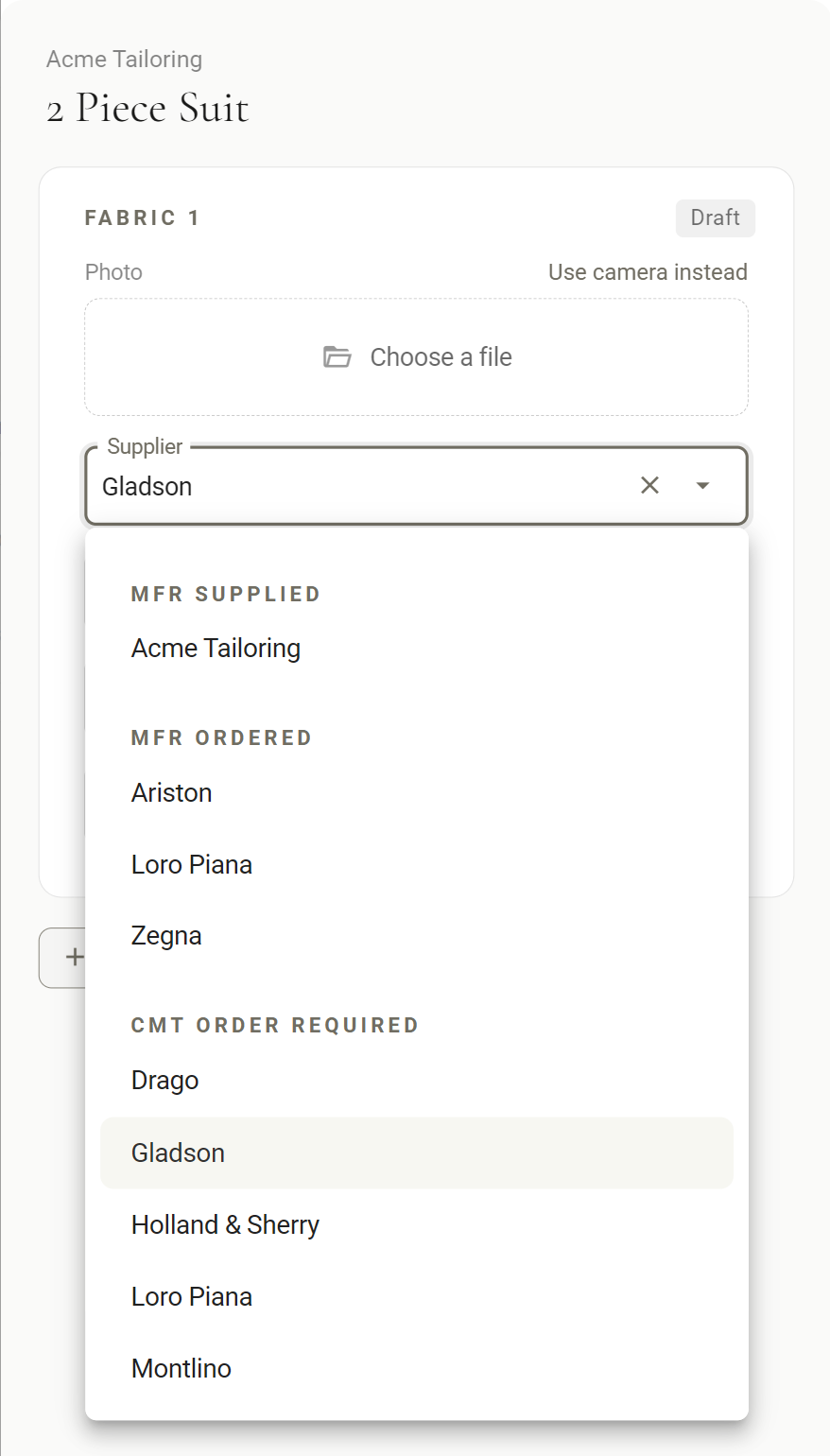
A purchase order needs three things from every fabric: Supplier, Fabric # and Length. Description is optional and goes on the order when you fill it in.
Fabrics under Mfr Supplied and Mfr Ordered are for cloth the manufacturer holds or orders for you, so they need no purchase order. If the manufacturer allows more than one fabric, Add another fabric adds a second. Each fabric is ordered from its own mill, so two fabrics from two mills end up on two purchase orders.
2. Add it to a purchase order
Fabric goes onto a purchase order from Check and Submit, the same window that sends garments to the manufacturer.
- Open Check and Submit On the order, click Check and Submit.
- Tick Add Fabric PO Two columns of boxes sit on the left: Submit Garment and Add Fabric PO. Tick Add Fabric PO for each garment whose cloth you want ordered. Clicking a row ticks or clears both boxes. Select All flips every box it can, so empty boxes get ticked and ticked ones are cleared.
- Check the counters and submit Under the list, a line such as 1 out of 2 fabrics tells you how many fabrics are ticked. Click Submit.
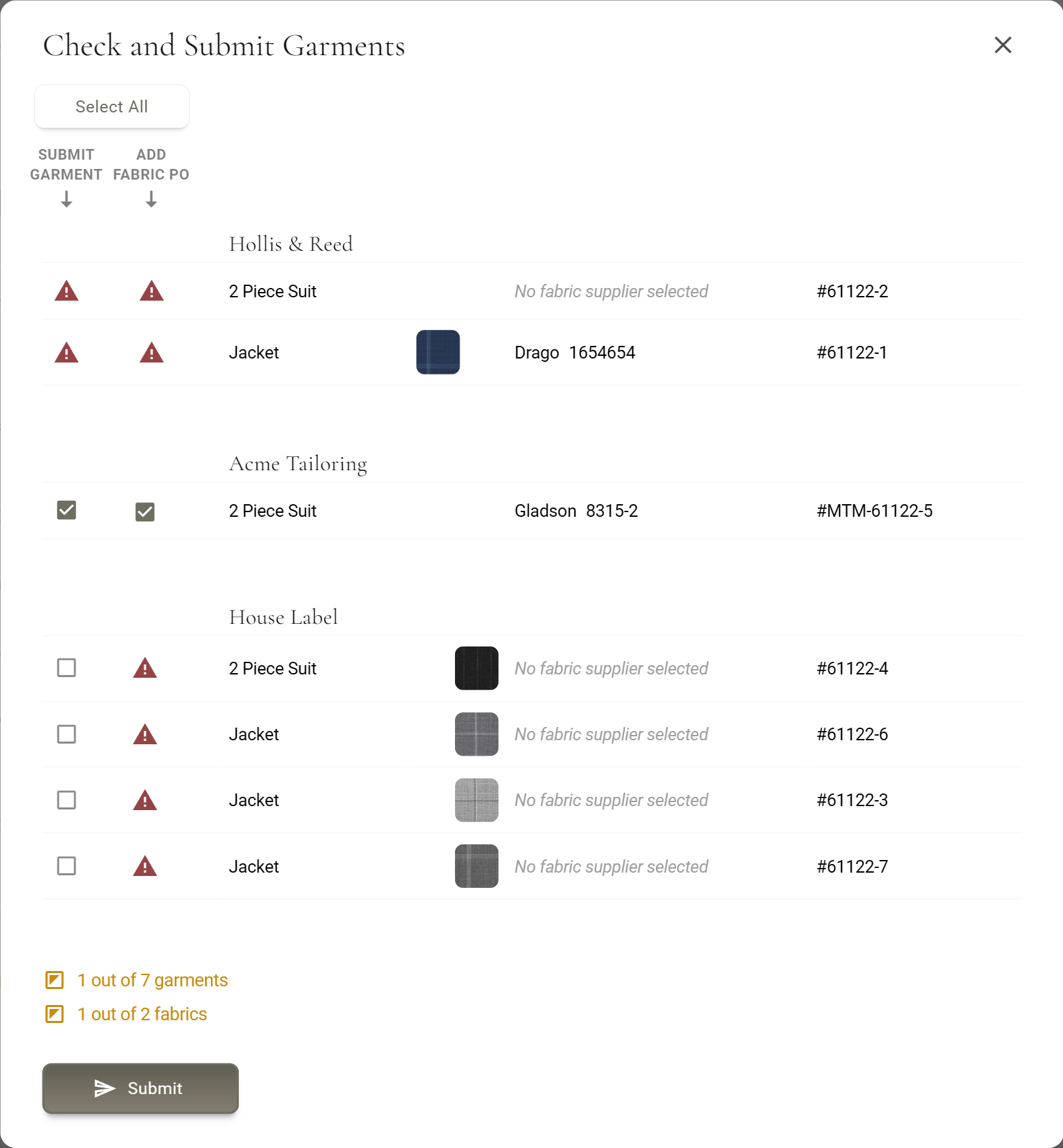
Each ticked fabric becomes a Pending line on the open purchase order for its mill and that manufacturer. If there is no open one, MTMPRO starts a new one with the next PO number.
Cloth without sending the garment
Tick Add Fabric PO and leave Submit Garment empty to order only the cloth. Use it when the garment has already gone to the manufacturer, or to get the cloth moving before the order is final. A garment submitted earlier still has its Add Fabric PO box.
When there is no box
- A red warning sign The fabric is missing its Supplier, Fabric # or Length. Hover it to see which, then fill it in on the fabric panel.
- A crossed-out boxManufacturer supplied fabric. No purchase order is required.
- A red settings icon Something is missing in settings: the manufacturer's shipping address, the mill's email recipients, or the Reply Email. Hover it to see which.
3. Check what is pending
Open Fabric Orders, opens in MTMPRO to see what is waiting to go out. A shop that sends by hand usually looks here once a day.
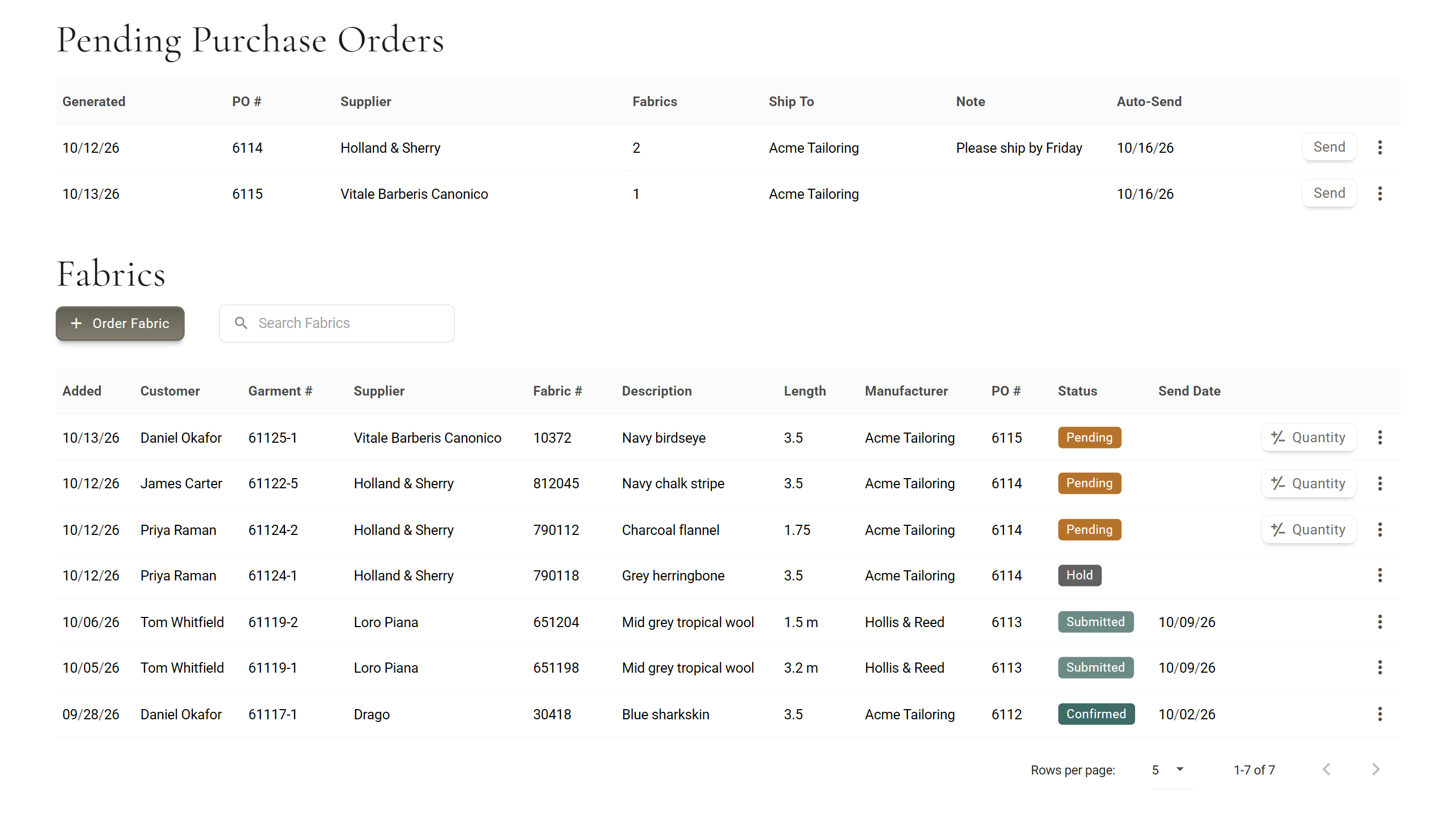
Pending Purchase Orders, at the top, lists the orders not sent yet: when each was generated, the PO #, the supplier, how many fabrics are pending, Ship To (the manufacturer the mill sends it to), your note, and Auto-Send, the day the schedule will send it or Manual send required.
Fabrics, below, lists every fabric on every purchase order, newest first and sent ones included, with its status and send date. Search Fabrics filters it. Lookup Fabrics in Order in a purchase order's menu puts its PO number in Search Fabrics, which shows that order's lines (and any other line whose numbers contain the same digits).
Changing a pending fabric
- Quantity On a Pending line only. Type the new length or use minus and plus, then click Update. The garment's length changes with it. If the mill sells in another unit, To be ordered as shows the length the mill will see.
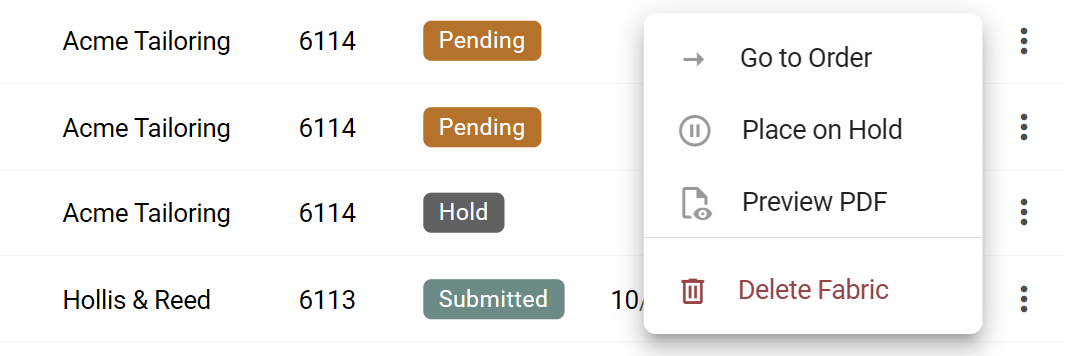
- Place on Hold Keeps the fabric off the order when it goes out, for example while the customer decides between two cloths. Remove hold puts it back. If the order went out while the line was on hold, removing the hold puts it on a new purchase order of its own.
- Delete Fabric Takes the line off for good, after Delete fabric order? Deleting the last line deletes the purchase order too. Once a line is Submitted or Confirmed, only owners and admins can delete it.
- Go to Order and Preview PDF Open the garment's order, or its order form. Greyed out for extra fabric ordered with a custom garment number, which has no garment behind it.
- Add Note In the purchase order's own menu, not the fabric's. A line for the mill, such as a delivery date, that goes out with the order.
4. Send it
Click Send on the purchase order's row. MTMPRO emails it to the mill's email recipients, the first as the main address and the rest copied in. The order carries the PO number, the fabrics, the manufacturer's shipping address (or a special shipping address set for that mill and manufacturer), your note, and your Reply Email for questions.
Only Pending lines go; lines on hold stay behind. The order then leaves Pending Purchase Orders, and its fabrics read Submitted with that day's Send Date. Send works once per purchase order. The exception is a batched Order Fabric line, which can bring a sent order back to Pending Purchase Orders.
On a schedule
Under Settings / Purchase Orders, opens in MTMPRO, Automatic Scheduling, pick the days and a time. At each one, every pending purchase order goes out by itself. Auto-Send shows the day each order is due, and Send still works in between for a rush.
When the mill confirms
The email has a link for the mill to confirm. When they click it, a Thank You page tells them the PO has been confirmed with your shop, and every fabric that order sent reads Confirmed. If a mill confirms another way, by phone or through its own website, open the line's menu and choose Mark as Confirmed.
If it does not send
When you click Send and it fails, you see Failed to send email. with the reason, and the order stays pending. A scheduled send that fails shows no message; the order just stays in Pending Purchase Orders. The usual reason is a mill with no email recipient: No email address is set up for this supplier. Add one under Settings > Purchase Orders > Email Recipients. Add one and click Send again. An order whose fabrics are all on hold has nothing to send.
Ordering extra fabric
Order Fabric, on Fabric Orders, is for cloth outside Check and Submit: the replacement when a mill is out of stock, a recut after a fitting, or extra cloth for a matching waistcoat later.
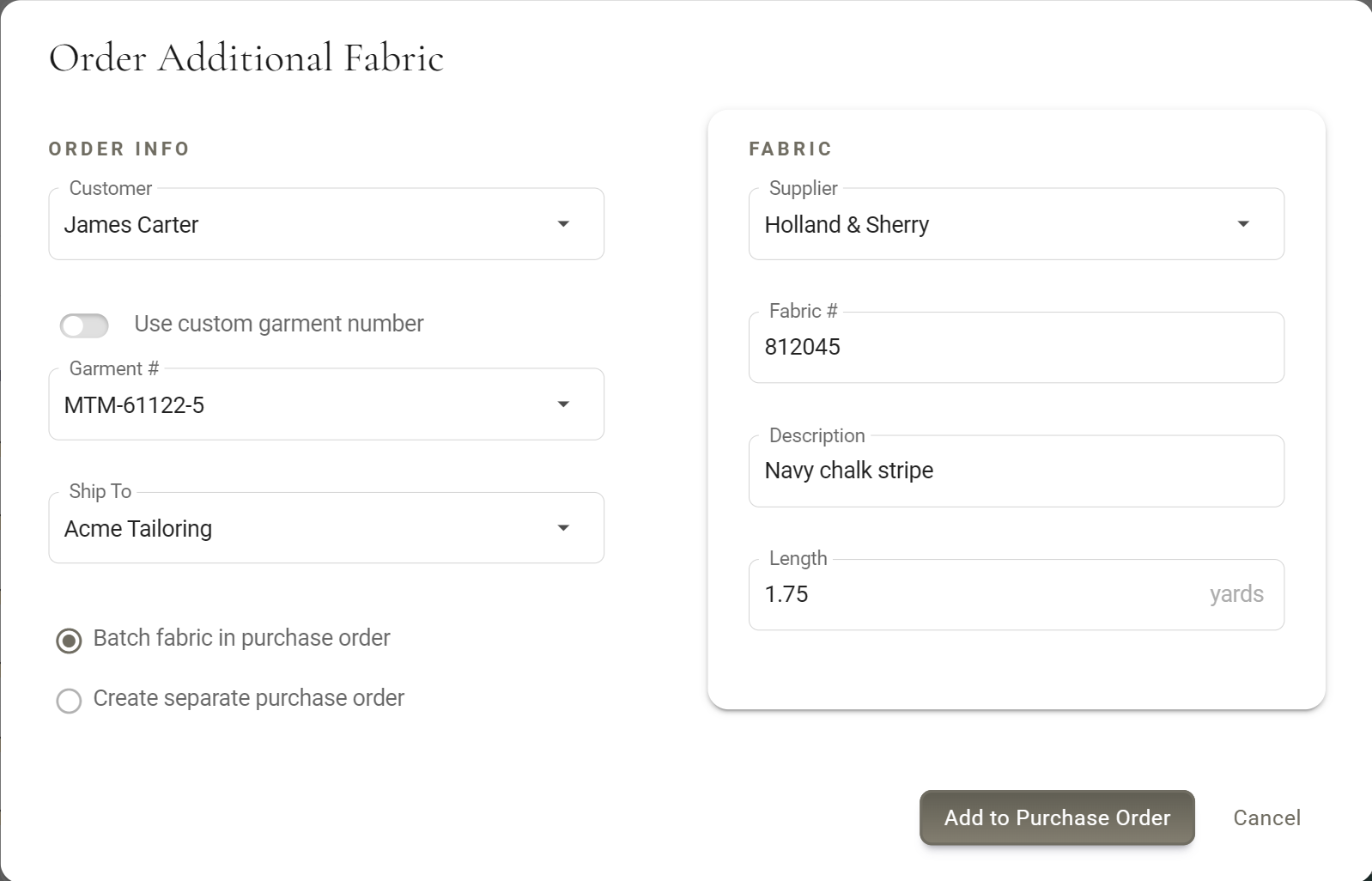
- Open it Click Order Fabric. The window is Order Additional Fabric.
- Who it is for Pick the Customer, then the Garment # from that customer's garments. For a garment without a number, switch on Use custom garment number and type one.
- Where it goes Choose Ship To, the manufacturer the mill sends it to. Batch fabric in purchase order puts it on a purchase order MTMPRO already has for that mill and manufacturer. That can be one that already went out: it then comes back to Pending Purchase Orders under its old number. Create separate purchase order gives it one of its own, which is the safe choice for a recut or a rush cut.
- The clothSupplier, Fabric # and Length, plus a Description if you want one.
- Add it Click Add to Purchase Order. It shows on Fabric Orders as a Pending line, ready to send.
What each status means
A CMT fabric carries one of these tags on Fabric Orders, on the garment's fabric chip and in the fabric panel. Hover the tag on the garment row for what it means and the day it was sent.
The same tag sits inside the fabric chip on the garment row, after the mill and the fabric number.
On the garment only: a CMT fabric that is not on a purchase order yet. The tooltip reads Not on a purchase order yet.
On a purchase order that has not gone out. The only state whose length you can change with Quantity.
Kept off the order until you remove the hold.
Emailed to the mill. On the garment row the tooltip reads Submitted with the day it went out.
The mill confirmed it from the email, or someone marked it confirmed.
On the Garments screen, Pending, Hold, Submitted and Confirmed show as small icons beside the fabric; Draft shows nothing there. While a fabric is Draft, Pending or on hold you can still correct it in the fabric panel, even after the garment is submitted. Once it is Submitted or Confirmed it is fixed.
Who can use it
- Your plan Fabric Purchase Ordering is included on Premier and Scale and is an add-on on Business. Without it there is no Add Fabric PO column and no Fabric Orders in the menu, and Settings / Purchase Orders shows what it would add.
- Fabric Orders In the menu for owners and admins.
- Add Fabric PO Anyone who can use Check and Submit: owners, admins, and staff with the Order Submission permission.
Good to know
- One order per mill and manufacturer Check and Submit adds to the open order for that mill and manufacturer, so Holland & Sherry cloth for two manufacturers makes two purchase orders, even when both ship to the same address.
- A garment goes on once When a garment's fabric is already on a purchase order, Add Fabric PO leaves that garment out, and a red message names the mill and fabric number. Search for that fabric number on Fabric Orders to find its order. For more cloth for it, use Order Fabric.
- The order keeps what it was given Changing the fabric number or length in the fabric panel after the fabric is on a purchase order does not change the order. Change the length with Quantity. For a different cloth, delete the line and order the right one with Order Fabric.
- The garment's status does not move Sending a purchase order leaves the garment's status as it is. If you track cloth with the Fabric Ordered status, set it yourself.
- Deleting a garment deletes its fabric lines Pending and submitted ones alike, as the delete window warns. A submitted order has already reached the mill, so tell them yourself.
- Arrival is not tracked The statuses stop at Confirmed. Nothing on Fabric Orders records the cloth reaching the manufacturer.
- Slack can tell you If your shop uses Slack, MTMPRO can post when a purchase order is created, is emailed to the mill, is confirmed, or could not be sent.
More: Fabric Options · Placing an Order · Garment Statuses · Billing and Your Plan · Slack Integration