Fabric Options
Fabric Options decide, for one manufacturer, where a garment's cloth comes from and what your team has to write down about it. This page covers the three ways fabric can reach a manufacturer, how many fabrics a garment can carry, and which fabric details are shown and required.
What it decides
Every manufacturer gets its cloth a different way. A shirt maker cutting from its own swatch books only needs the book's fabric number. A suit maker making up a customer's Loro Piana needs to know which mill, which number and how much cloth is on its way. Fabric Options tell MTMPRO which kind each manufacturer is, so the order asks your team for what that manufacturer needs and nothing more.
There are three ways fabric can reach a manufacturer. Turn on every one that applies. A maker with its own books that will also make up cloth you send it can have both, and your team picks the right one for each fabric.
House fabric. The manufacturer has its own collections, books or swatch cards. Your team picks the cloth from them and writes down its number. Common with shirt makers and large manufacturers.
The manufacturer orders it for you. It buys the cloth from mills you name, such as Ariston or Huddersfield Textiles, and you send no purchase order.
You buy it. You order the cloth from the mill yourself and have it shipped to the manufacturer, which cuts and makes the garment (CMT). MTMPRO can send the purchase order for you.
Where to find it
Click Settings beside the manufacturer, then the Fabric Options tab, between Measurement Options and Order Sending. Number of Fabrics, Fabric Ordering and Fabric Fields are all set here.
The third step of adding a manufacturer asks how you source its fabric and sets the same three switches. Next stays greyed out until one is on. Fine-tune the rest on the tab afterwards.
The suppliers your team can pick for fabric you buy yourself. See fabric ordering below.
Reads Select fabric until a fabric is added, then the supplier and number. Click it to open the fabric panel. The garment's Style form has the same fabric details near the top.
How many fabrics
Most garments take one cloth. Allow two or three if your team sometimes orders a second cloth from this manufacturer, such as a contrast fabric.
- Allow or not Under Number of Fabrics, pick Allow fabrics for this manufacturer. Pick Do not allow fabrics for this manufacturer for a maker whose garments never take a fabric, such as accessories.
- Set the most Use the plus and minus beside the number to set 1, 2 or 3. It starts at 2.
- Save Click Save.
On the order, the fabric panel offers Add another fabric up to the number you set. The Style form has Add Second Fabric and Add Third Fabric for the same thing.
With fabrics not allowed, Fabric Ordering and Fabric Fields disappear from the tab once you save, and this maker's garments show no fabric line on the order.
Fabric ordering
Here you tell MTMPRO which of the three ways this manufacturer works. What you switch on decides which suppliers your team can pick on an order.
- Switch on each way that applies Click the switch, or the text beside it: Manufacturer Supplied, Manufacturer Ordered, Purchase Order Required.
- List the mills it orders from With Manufacturer Ordered on, a box asks which suppliers the manufacturer orders for you. Type part of a name in Add Fabric Supplier and pick it from the matches. It is added straight away, with the message Fabric supplier added.
- Save Click Save under Fabric Ordering. The message reads Fabric option updated.
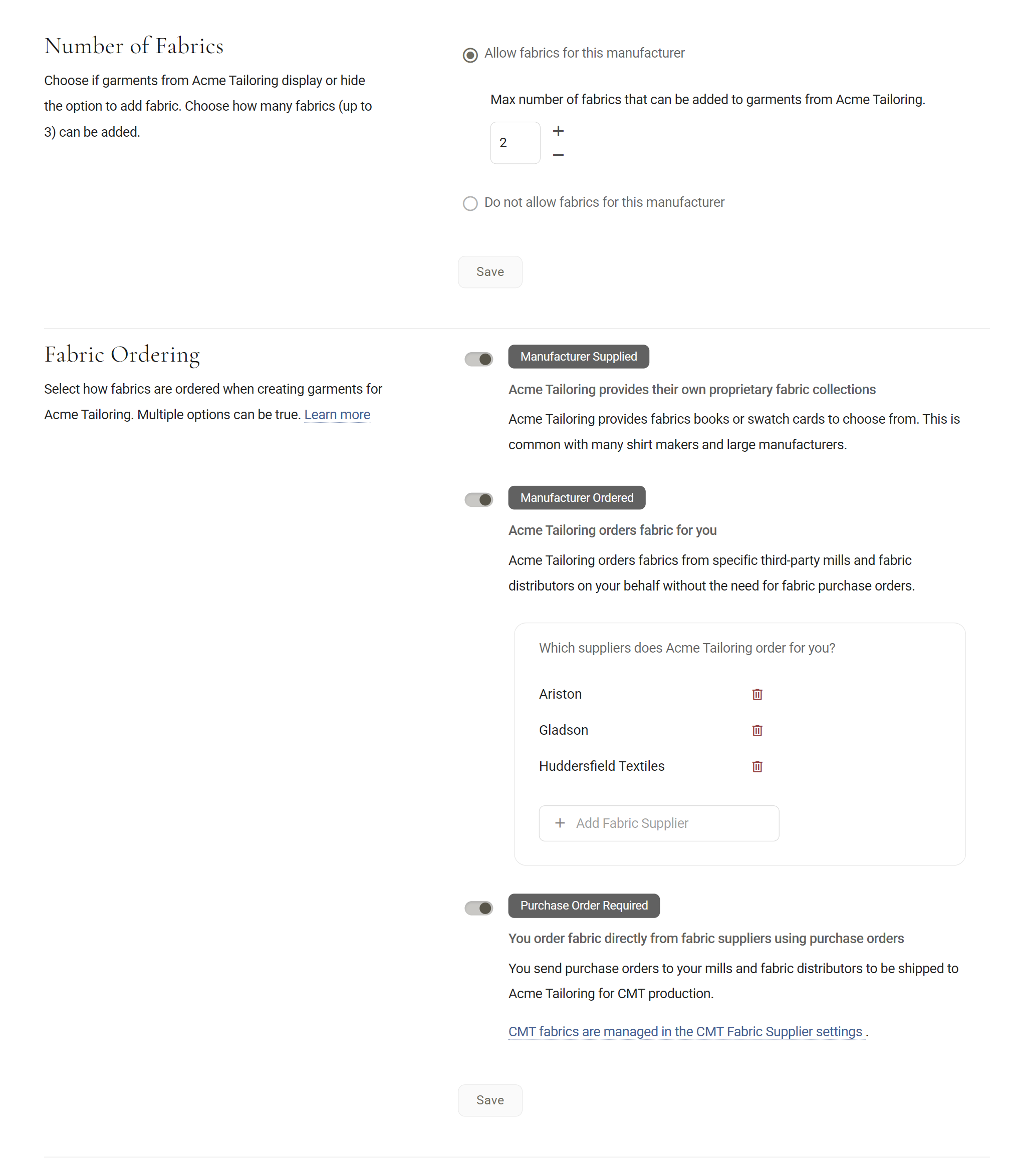
The bin beside a mill removes it at once, without asking first. If you remove one by mistake, add it again.
Supplier names come from MTMPRO's own list of mills and merchants, so you pick rather than type. If one you use is missing, the box says Fabric supplier not found. MTMPRO adds new names to that list, so get in touch and ask.
If you buy the cloth yourself
With Purchase Order Required on, your team picks from your own suppliers. Add them under CMT Fabric Suppliers, opens in MTMPRO: click Add Supplier, choose the supplier, say whether its fabric length is measured in Yards or Meters, and save. Only suppliers set to Active are offered on orders.
Fabric Lengths, opens in MTMPRO, under the same heading, holds your usual length for each garment from each manufacturer, so a purchase-order fabric starts with a sensible number. Sending the purchase orders themselves has its own guide.
More: CMT Fabric Orders
Fabric fields
Fabric Fields picks which details your team fills in for each fabric, and which they must fill in. Tick a field to show it, then tick Required beside it if the manufacturer cannot do without it.
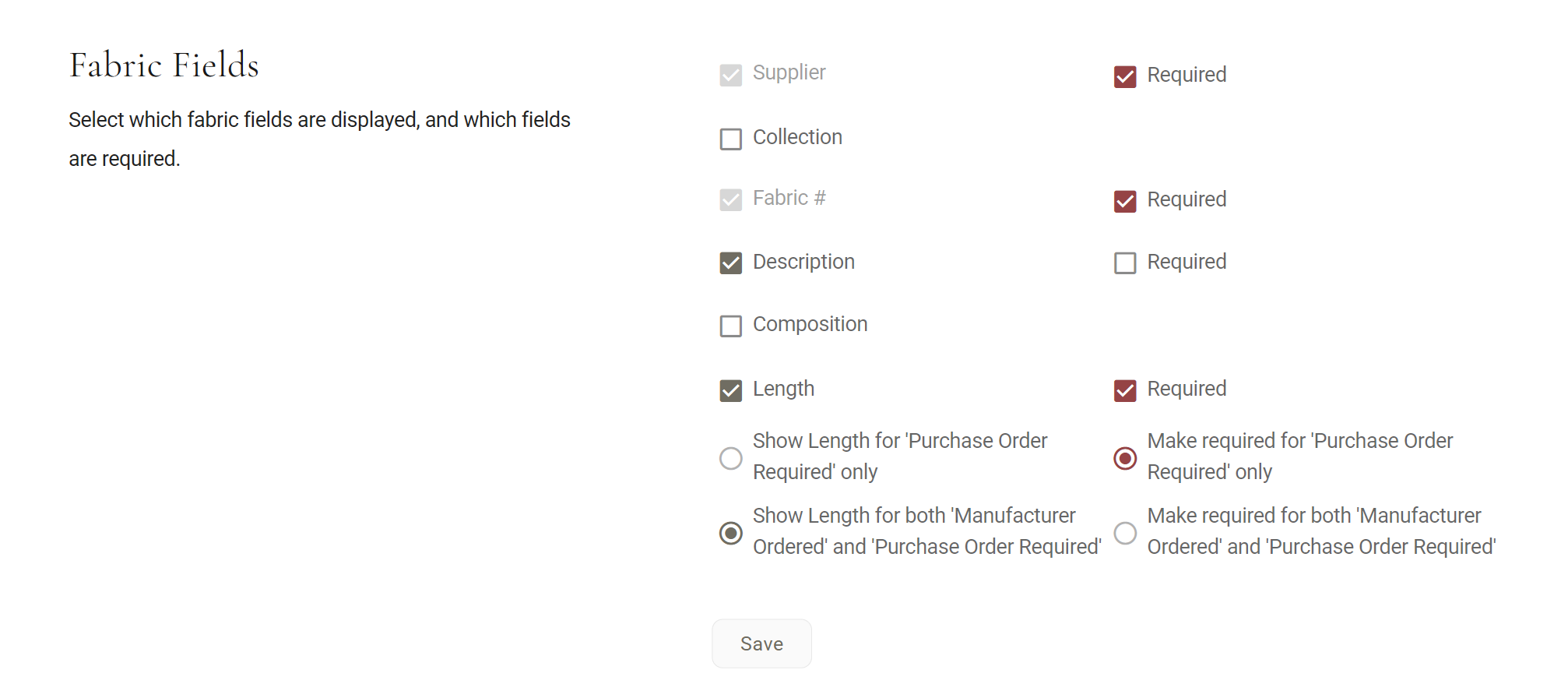
- Supplier: who the cloth comes from. Shown whenever Manufacturer Ordered or Purchase Order Required is on, and hidden otherwise. A maker that only cuts from its own books does not need telling.
- Collection: the book or bunch the cloth is in. Hidden at first.
- Fabric #: the cloth's number. Always shown.
- Description: a few words about the cloth, such as navy chalk stripe. Shown at first.
- Composition: what it is made of, such as 100% wool. Hidden at first.
- Length: how much cloth. Shown at first, and only asked for once a supplier is picked.
A manufacturer you add through Add Manufacturer starts with Supplier and Fabric # required. Untick them if your team should be free to leave them for later.
Length for two kinds of fabric
When a manufacturer both orders cloth for you and takes cloth you send, Length asks one more thing: Show Length for 'Purchase Order Required' only, or Show Length for both 'Manufacturer Ordered' and 'Purchase Order Required'. Pick the first if the manufacturer works out its own yardage when it orders.
Pick both and tick Required, and a second choice decides whether Length is required for both or only for purchase-order fabric.
The two 'only' choices need Manufacturer Supplied switched on too. Without it, a required Length left empty on fabric the manufacturer orders for you still marks the garment's Style button needs info, even where Length is hidden.
On the order
Your team adds fabric from the garment's row: click Select fabric, or the fabric already there, and the fabric panel opens with only the fields you chose. Required ones carry an asterisk.
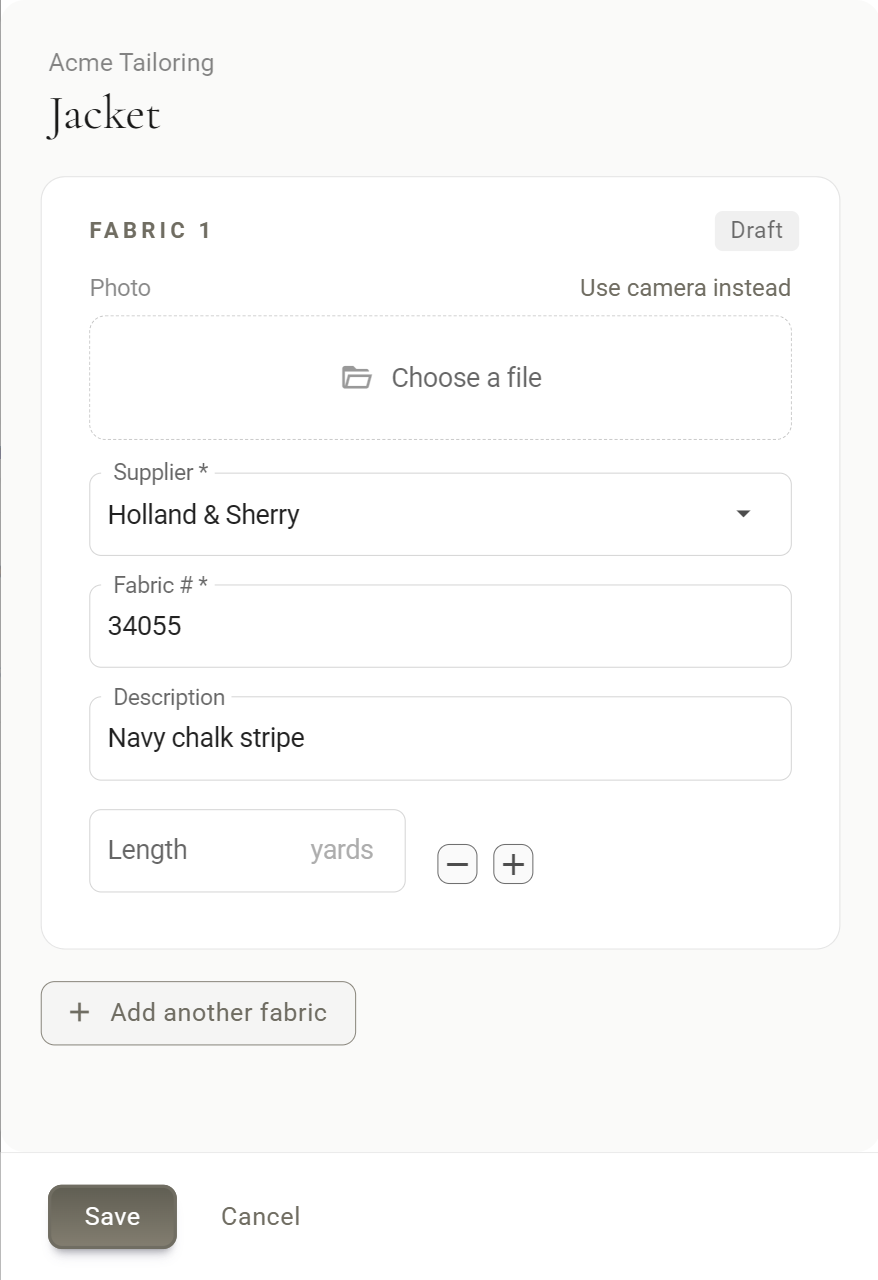
The Supplier list is grouped by the three ways fabric arrives, so whoever places the order picks the kind of fabric and the mill in one go.
Mfr Supplied is the manufacturer itself, listed under its name. Mfr Ordered holds the mills you listed on the tab. CMT Order Required holds your CMT Fabric Suppliers. On the Style form the last group is called Purchase Order Required.
Pick one of your own suppliers for the first fabric and Length fills in with your usual length from Fabric Lengths, if you have set one. A second or third fabric's Length is left for you to fill in. What you type is kept when you click Save. Cancel closes the panel without it.
When something required is missing
Once any fabric detail is filled in, a required one left empty marks the garment's Style button needs info. It only stops the garment being submitted if the manufacturer also has Require Fields to Submit switched on, on its Order Forms tab. The submit list then shows a red alert in place of the garment's checkbox, so it cannot be ticked. Hover the alert to read Required fields missing.
What the manufacturer sees
On the finished order, fabric the manufacturer orders for you carries a Please Order Fabric tag above the mill's name, so nobody waits for cloth that is not coming. House fabric shows Manufacturer as the supplier. Neither ever goes on one of your purchase orders.
Ariston
More: Manufacturer Settings
Good to know
- Set once per manufacturer Each manufacturer has its own Fabric Options. Changing one never touches another.
- Open orders catch up on reload An order already open on someone's screen shows the new settings once the page is reloaded.
- Supplier list changes are instant Adding or removing a mill under Manufacturer Ordered happens straight away, with no Save and no question first.
- Turning fabrics off later Garments that already have a fabric keep showing it on their row, but it can no longer be opened or changed.
- Purchase orders depend on your plan Fabric Options work on every plan. Sending purchase orders from MTMPRO is Fabric Purchase Ordering, which some plans include and others add on. See Billing.