Body Profile Section
The Body Profile section holds what is true of a customer's body whatever they order, such as posture and shoulder slope, and shares it across a manufacturer's garments. This page covers setting it up, choosing which garments show it, and what your team sees on an order.
What it is for
Some things about a customer do not change from one garment to the next. Marco stands very upright, his right shoulder sits low, and he has a full chest. Your fitter notes that once, and every jacket, vest and overcoat you order for him from that manufacturer needs to know it.
The Body Profile section is where those questions live. It sits at the top of a manufacturer's measurement forms and holds the same fields on every garment where you switch it on. The answers are kept for the customer, so once they are filled in on his jacket, they are already there on his vest and on next season's overcoat from the same manufacturer, wherever the section is on.
It is not the same as measurement tabs. Tabs give one garment several ways to be measured. The body profile is one set of questions shared by many garments.
Setting it up
Do this once per manufacturer, before your team starts taking orders with it.
- Open a garment's Measurement Form In Settings / Manufacturer Settings, opens in MTMPRO, open Edit Forms on the manufacturer's row and pick a garment that should ask these questions, such as the jacket. Go to the Measurement Form tab. The Body Profile Section is the first card.
- Switch it on for this garment Turn on Enable section for Acme Tailoring Jacket, with your manufacturer and garment in place of those names. It takes effect straight away, with no separate save.
- Add the fields On an empty section, click Add Field. After that, use the plus at the left edge of the list. Build each field as you would any other measurement: a Posture choice with Normal, Erect and Stooped, a Shoulder Slope choice, a Full Chest yes or no. Drag fields by their handle to set the order your fitter asks them in.
- Switch it on for the other garments Open each garment that should show the section and turn its switch on. The fields are already there, because they belong to the manufacturer, not to one garment.
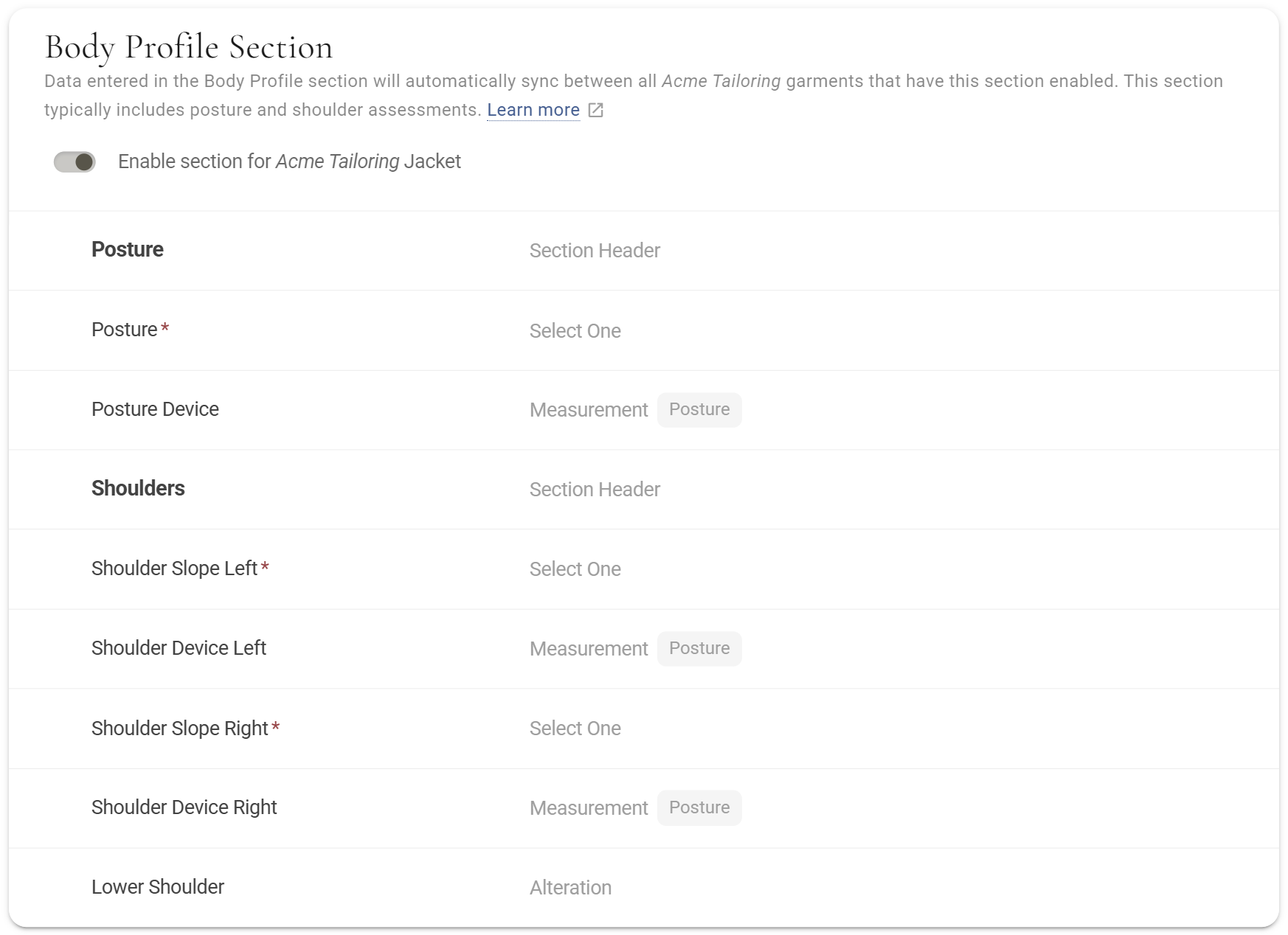
You can edit, clone, reorder and delete body profile fields from any garment where the section is on, and every garment from that manufacturer changes with it. Logic on a body profile field can only look at other body profile fields. See Logic.
Choosing the garments
The fields belong to the manufacturer, and the switch belongs to each garment. Turn it on wherever every one of the questions makes sense. If your body profile is all about the upper body, switch it on for the jacket, vest, overcoat and shirt, and leave it off for the trousers.
It is all or nothing on each garment: every body profile field shows wherever the section is on. You cannot show some of them on the jacket and others on the vest. So keep the body profile to what applies to all of those garments, and put anything garment-specific on that garment's own form.
Turning it off
Turn the switch off on a garment and the section stops showing on it straight away, including on orders already in progress that are not locked yet. Nothing is deleted. The fields stay for the manufacturer's other garments, customers' answers are kept, and turning the switch back on brings the section back.

What your team sees
On a garment with the section switched on, the body profile is its own block near the top of the measurements: after Height and Weight, if the manufacturer uses them, and before the garment's own measurements. The fields come in the order you set.
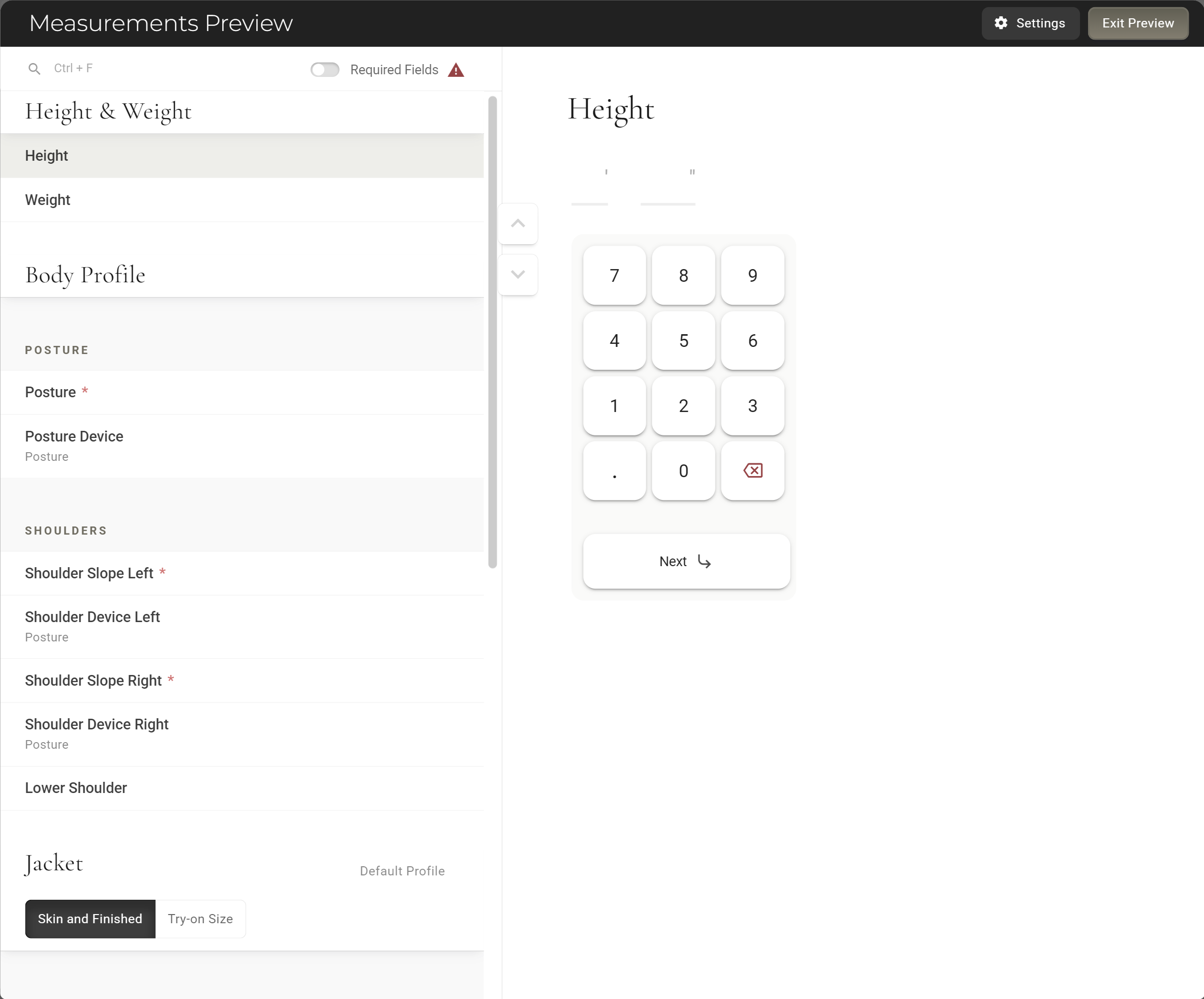
- Filled in once The answers belong to the customer, for that manufacturer. Fill them in on any of the customer's garments and they are there on the others where the section is on, on this order and on later ones.
- Required only where it shows A required body profile field only holds up garments where the section is switched on. A garment already on an order goes by the switch as it was when the garment was added, so after changing the switch, check the Required status on orders in progress.
- On the finished order The review screen and the finished order show the body profile answers near the top of that garment's measurements. Garments with the section off leave them out.
- In the history A change to a body profile answer shows at the top of the history of every garment from that manufacturer. See Measurement History.
Suits
A suit asks the body profile questions once, above its first piece, not once per piece. A two-piece suit lists posture and shoulders, then each piece's own measurements.
A two-piece suit, after Height and Weight: one body profile block, then each piece.
A suit has no switch of its own. It follows the switches of the garments it is made of, and the last one you changed decides.
Good to know
- Each manufacturer has its own The body profile belongs to one manufacturer, and a customer's answers are kept separately for each. Ordering from a second manufacturer means filling in its body profile too. Its number fields and its Select One choices can be linked across manufacturers in Connected Measurements, where they are listed under Body Profile.
- One change reaches every garment Adding, editing, reordering or deleting a body profile field changes it on all of that manufacturer's garments at once. Deleting one also deletes the answers your team has saved in it, so read the count in the confirmation first.
- It cannot be copied from another formCopy fields from different form only lists a garment's own measurements. Build body profile fields by hand, or Clone one already in the section. They cannot be dragged into or out of the section either.
- Locked garments keep what they had Locking a garment keeps its body profile, switched on or off, as it was. Later changes to the switch or the answers only reach garments that are not locked yet.
- Preview Form always shows itPreview Form on the Measurement Form includes the body profile even when the switch is off for that garment. Check the switch, not the preview.
- New manufacturers can start with fields When you add a manufacturer, its forms may come with a starting set of body profile fields, and the section already on for some garments. Check each garment before the first order.
- Not on Master Measurements The Master Measurements form has no body profile.
More: Using the Form Builder · Measurement Tabs · Logic · Measurement History · Connected Measurements