Claude and ChatGPT
Connect MTMPRO to Claude or ChatGPT, and your team can ask about customers, orders and garments, read a garment's measurements and style options, and update its details, all from the assistant they already use. This page covers turning it on, connecting each app, what they can see and change, and who can use it.
What it does
Your team already uses Claude or ChatGPT for emails, planning and notes. Connected to MTMPRO, the assistant can look up your store's data and make everyday changes while they work: find a customer, check what is on an order, read a jacket's chest measurement, set a manufacturer's reference number, move a garment to a new status.
Each person connects with their own MTMPRO login. The assistant works as them, with the same permissions they have in the app, and only ever sees your own store. It saves the trip between a conversation and MTMPRO: the answer, or the change, happens where the question was asked.
When you would use it
- A manufacturer's emailA maker writes that the Carter jacket is confirmed and ships on the 14th. Paste the email into ChatGPT and ask it to put the confirmation number and the shipping date on the garment. It finds the order and sets both.
- Planning the week"What is due this week, and where is work getting stuck?" Claude lists the need-by dates with their order numbers and tells you which statuses garments sit in longest, so the morning starts from one answer.
- A fitting note on the way outAfter a fitting, "add to James Carter's style preferences: likes a higher button stance". The note lands on the customer, where the next order will show it.
- A remake"Mark the Reed trousers as a remake and rush them." Both flags are set on the garment, as if you had opened its Edit Info.
Where to find it
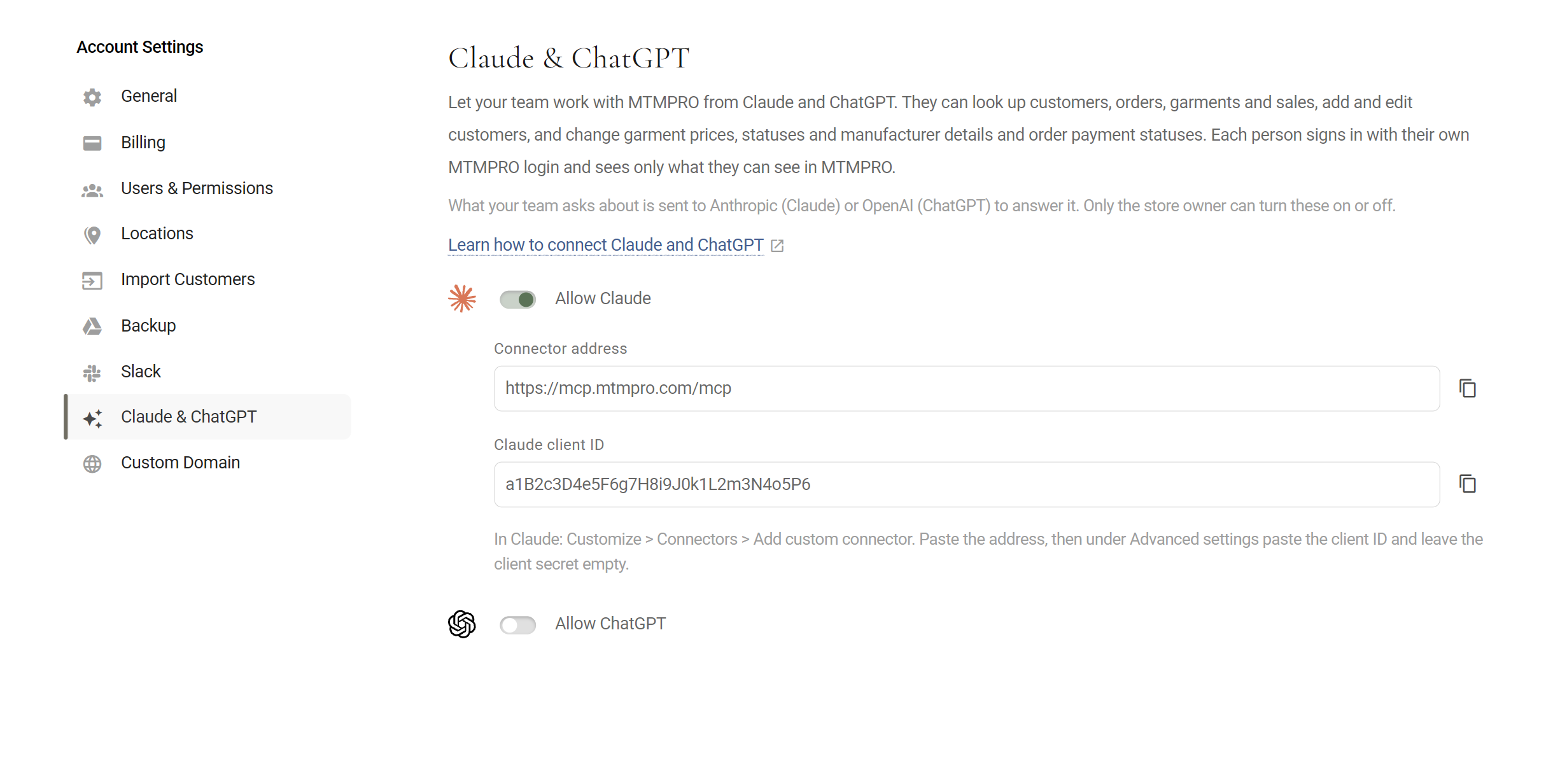
The two switches and, under each one when it is on, what to paste into that app.Account is in the left-hand menu, in the Settings section just below Settings, and only the account owner sees it.
Where each person adds MTMPRO to their own Claude, with the address and the Claude client ID from the switch.
In ChatGPT's own settings, where each person adds MTMPRO as an app, with the address and the ChatGPT client ID from the switch.
Set it up
The owner turns each app on once for the store. Then every team member connects their own Claude or ChatGPT, signing in with their own MTMPRO login.
Turn it on
- Open Claude & ChatGPTGo to Account, then Claude & ChatGPT, opens in MTMPRO.
- Turn on the appSwitch on Allow Claude, Allow ChatGPT, or both. Each saves as soon as you flip it, and a short message at the bottom of the screen confirms it. The Connector address and that app's client ID appear under the switch.
- Share the details with your teamClick the copy button next to each field. The address is the same for both apps; the client ID is different for each. Neither is a secret: they only say where MTMPRO is, and everyone still signs in with their own login.
Connect Claude
- Add a custom connectorIn Claude, open Customize, then Connectors, and choose Add custom connector.
- Paste the addressPaste the Connector address. Then open Advanced settings, paste the Claude client ID and leave the client secret empty.
- Sign in to MTMPROClaude sends you to the MTMPRO sign-in. Use your own login. From then on MTMPRO is one of Claude's connectors, and you can ask about your store in any conversation.
Connect ChatGPT
- Add MTMPRO as an appIn ChatGPT, add a new app with OAuth sign-in. Paste the Connector address and the ChatGPT client ID, and leave the client secret empty.
- Sign in to MTMPROChatGPT sends you to the MTMPRO sign-in. Use your own login.
What they can see and change
Claude and ChatGPT read and change your data through the same steps the app takes, as the person signed in. Read means the assistant can look it up and answer questions about it. Read & write means it can also change it, as the screen it names would.
Garment Info and Tracking Read & write
Everything on a garment's Edit Info, apart from the fitting checkbox some forms show: Garment No., Previous Garment No., Rush Order, Retailer Need-By, Customer Need-By, Ship to Customer, Remake, Mfr Ref No., Order Conf. No., Order Conf. Date and Est. Shipping Date. Also the garment's price, and its status, with a note for the status history if you give one.
Fabric Read
Each fabric on the garment: Supplier, Fabric #, Description, collection, composition and Length, and whether its fabric purchase order has gone to the supplier. Fabric is changed in MTMPRO only.
Measurements Read
Every measurement on the garment's worksheet, in the unit your store uses for that manufacturer, with its type: body (the app calls it Skin), finished, posture or other. A submitted garment gives the measurements the manufacturer received; an open one, the current ones.
Style Options Read
Every design choice on the garment by name, with anything written in next to it, by section and, on a suit, by part.
Status history Read
The most recent changes in the garment's status history, up to ten: each status, when it changed, who changed it, and the notes on it.
Customers Read & write
Name and contact details, general notes, Style Preferences and Wish List, alterations and order history. The assistant can add a customer, change their details, and add to their notes, style preferences and wish list. Notes are always added to the end, never replaced.
Orders Read & write
What is on the order, its date, its garments and its Order Notes. The assistant can add to the order notes and set the payment status to unpaid, partial or paid. It does not record payments or amounts.
Sales and reports Read
Revenue and sales by period, rep, customer, month, garment type or manufacturer; what is due; what moved into a status and when; fabric and alteration figures; and a snapshot of how work is flowing. Associates get only their own sales and alteration figures, and no fabric, supplier or style figures.
MTMPRO guides Read
The assistant can look up these guides to answer how-to questions about MTMPRO itself.
A garment only goes to production, rush production, submitted or cancelled through the order page, so the assistant will tell you to do those there. It cannot create orders, submit garments to a manufacturer, or change forms, measurements, fabric or style options.
Who can use it
Only the account owner can turn an app on or off, since it lives under Account. Once an app is on, every owner, admin and associate in the store can connect it with their own login. The assistant then sees exactly what that person sees in MTMPRO: an associate with restricted customer access gets only their assigned customers, and only the sales they wrote themselves.
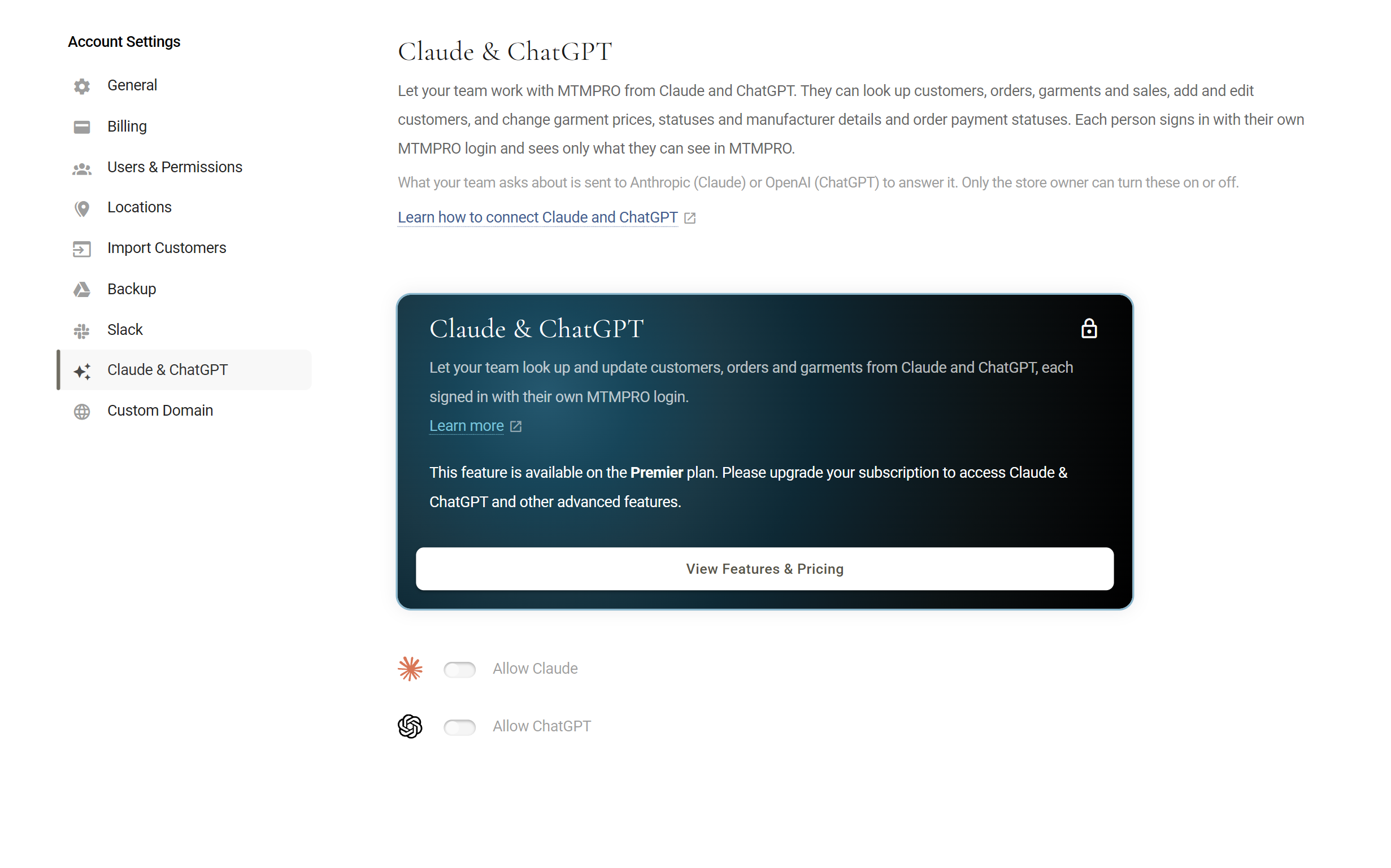
Claude & ChatGPT is part of the Premier and Scale plans, and of the Free plan's 30-day Premier trial. On any other plan the page shows the upgrade card and the switches are greyed out. If your plan changes to one without it, or the trial ends, both switches turn off by themselves and the assistants are told the store's plan does not include it; moving back to Premier or Scale does not turn them on again until the owner does.
Good to know
- Your login, your viewNobody gets more through Claude or ChatGPT than they have in MTMPRO. Changing someone'sCustomer Access in Users & Permissions applies to their next question; changing their Permission (owner, admin or associate) applies once their app signs in to MTMPRO again.
- One switch per appTurning Claude off does not affect ChatGPT, and the other way round. With a switch off, that app is told access is turned off and does nothing else.
- Open pages do not refreshA note or a change made from an assistant appears when the page is opened or reloaded. An order page that was already open keeps what it had.
- Dates and moneyGive dates as a date, not "next Friday"; the assistant works them out from today in your store's time zone. Prices are per garment, in US dollars.
- Numbers as typedA garment number, reference or confirmation number is saved as you give it, apart from stray spaces around a dash, slash or dot; the assistant does not reformat it. A garment number goes on one garment at a time.
- Aria is separateAria, the assistant inside MTMPRO, is on for every store. Its only switch is Disable Aria on an associate in Users & Permissions, and that switch does not affect Claude or ChatGPT. See Aria, your AI assistant.
More: Aria, your AI assistant · Slack Integration · Users and Permissions