Bookmarks
A bookmark keeps an order one click away, in a list at the top of every screen. This page covers bookmarking an order, opening and sorting your list, and who sees it.
What bookmarks are for
Most days you have a handful of orders on the go: one being measured, one waiting on a fitting, a rush that has to go out this week. Finding them means searching the Orders screen again every time. A bookmark saves the trip. Bookmark an order once and it stays in your Bookmarks list, at the top of every screen, until you take it off.
The list is yours alone. It belongs to your login, not to the computer, so it is there when you sign in at the front desk or on the tablet in the fitting room. Nobody else in the shop sees your bookmarks, and you do not see theirs.
When you would use them
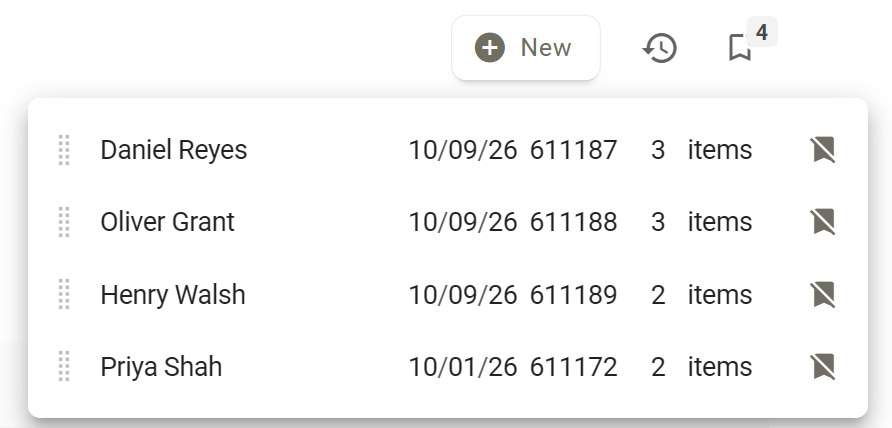
- A wedding party. Daniel Reyes and his groomsmen, Oliver Grant and Henry Walsh, each have an order. Bookmark all three before the group fitting and move from one to the next without searching, with the groom's at the top.
- Orders you are chasing. A rush jacket for Priya Shah due on Friday, a remake waiting on cloth from Loro Piana. Keep them bookmarked until they ship, then take them off.
- An order you are still building. You started James Carter's order before his second fitting. Bookmark it, and when he walks in next week it is one click away.
Where to find them
The bookmark at the top right, just after the New button and the Recents clock. The small number on it is how many orders you have bookmarked. Click it to open your list.
At the right-hand end of every order's header, before buttons such as Check and Submit. This is where you add an order to your list, or take it off.
Bookmarking is done on the order itself. The Orders screen and a customer's Orders tab have no bookmark button.
Bookmarking an order

- Open the order. From the Orders screen, the customer's page, or your Recents.
- Click the bookmark in the header. It fills in, and a short message says Order bookmarked.
- Check the top bar. The number on the Bookmarks button goes up by one, and the order joins your list near the top.
To take an order off from the order itself, click the filled bookmark. Its label reads Remove Bookmark, and the message Bookmark removed confirms it.
Using your list
Click the bookmark in the top bar and your list drops down. Each row is one order: the customer, the day the order was started, the order number, and how many garments are on it.
Open an order
Click anywhere on the row. The order opens and the list closes.
Put them in your order
Drag a row up or down by the dotted handle on its left. The new order is kept straight away, on every computer you sign in on. Put the order you are working on today at the top and the rest below it.
Take one off
Click the crossed-out bookmark at the end of the row. The order leaves your list and the list stays open, so you can clear several in a row. The message Bookmark removed confirms each one.
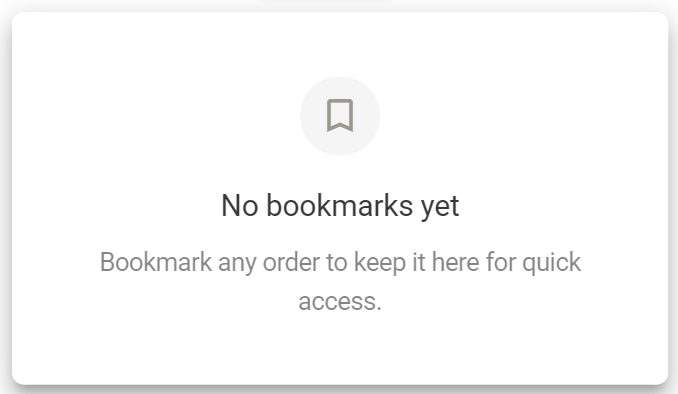
An empty list
What each part means
Outline, on an order. This order is not in your list. Click to bookmark it. Hover it and it reads Bookmark Order.
Filled, on an order. This order is in your list. Click to take it off. Hover it and it reads Remove Bookmark.
In the top bar. Opens your list. The number is how many orders you have bookmarked, and it is not shown while the list is empty.
Dotted handle, in the list. Drag it to move that order up or down.
Crossed out, in the list. Takes that order off your list without opening it.
Good to know
- Everyone has their own list Owners, admins and associates can all bookmark orders, and each person's list is private to them. An owner cannot see or arrange an associate's bookmarks.
- No set limit You can bookmark as many orders as you like. The list is most useful short, so take orders off once they are done with.
- Deleted orders drop off When an order is deleted, it disappears from everyone's bookmarks.
- A bookmark keeps an empty order If your shop shows the note Empty orders are automatically discarded after under an order with no garments yet, bookmarking that order stops it being discarded for as long as it stays bookmarked, by you or anyone else. Take the last bookmark off and it can be discarded again, within the hour if it is already older than the time in the note. The note stays on screen until you reload the page.
- If you lose access to a customer An associate who only sees their assigned customers keeps the bookmark after being taken off that customer. Opening it shows an error and takes you back to Orders. Take it off your list as usual.
- Bookmarks or Recents The clock button beside Bookmarks is Recents. It fills itself with the last seven orders you opened, plus recent customer profiles and settings, and it is kept on that browser only. Bookmarks are the orders you chose, kept until you take them off, wherever you sign in.
- If the list will not load A message reads Favorites not found. Your bookmarks are not lost. Reload the page to try again.
More: Keyboard Shortcuts · Groups