Trimming Libraries
A trimming library is one list of a manufacturer's buttons, linings or threads, with their codes and pictures, that any of that manufacturer's order forms can use. This page covers building a library, putting it on a form, and keeping it up to date.
What a library is for
The same horn buttons go on your jackets, waistcoats and overcoats. Typed into each form separately, that list soon drifts: a new code gets added to one form and forgotten on another. A library keeps it in one place. Add a button once and every form that uses the library offers it straight away.
Give each entry the manufacturer's own code. It goes out on the order with whatever your team picks, so the manufacturer gets the right reference and nobody has to type or spell it.
Where to find it
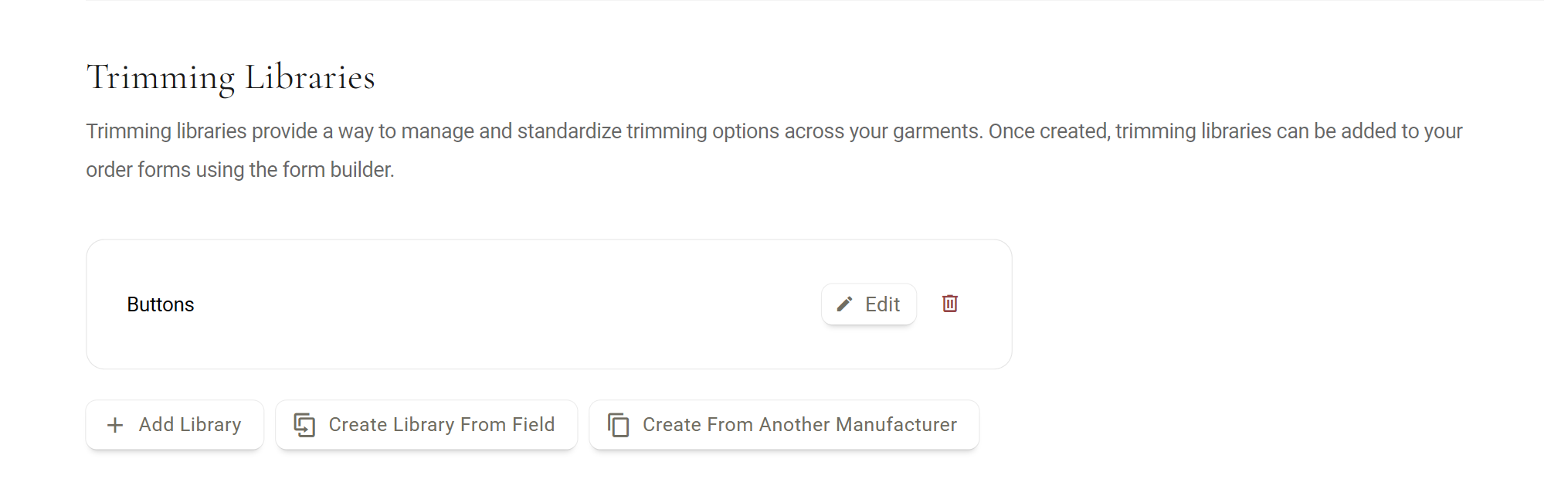
In Manufacturer Settings, open the manufacturer's Settings, go to the Order Forms tab and scroll to Trimming Libraries. Each library is listed with Edit and a bin.
Building a library
- Start itClick Add Library and give it a Library Name, such as Horn Buttons.
- Choose list or picturesUnder Manage Options, pick List, or Image Gallery and a size from Small to Full. Pictures help a customer choose a button they can see.
- Add the entriesFor each one, choose the item type, type its name (the box reads Option Name, Header Text or Write-In Label), add its Manufacturer Code and click Add Item. In a gallery, uploading a picture (up to 5 MB) fills in the name from the file name.
- Order and saveDrag entries into order on the right, then click Save Library.
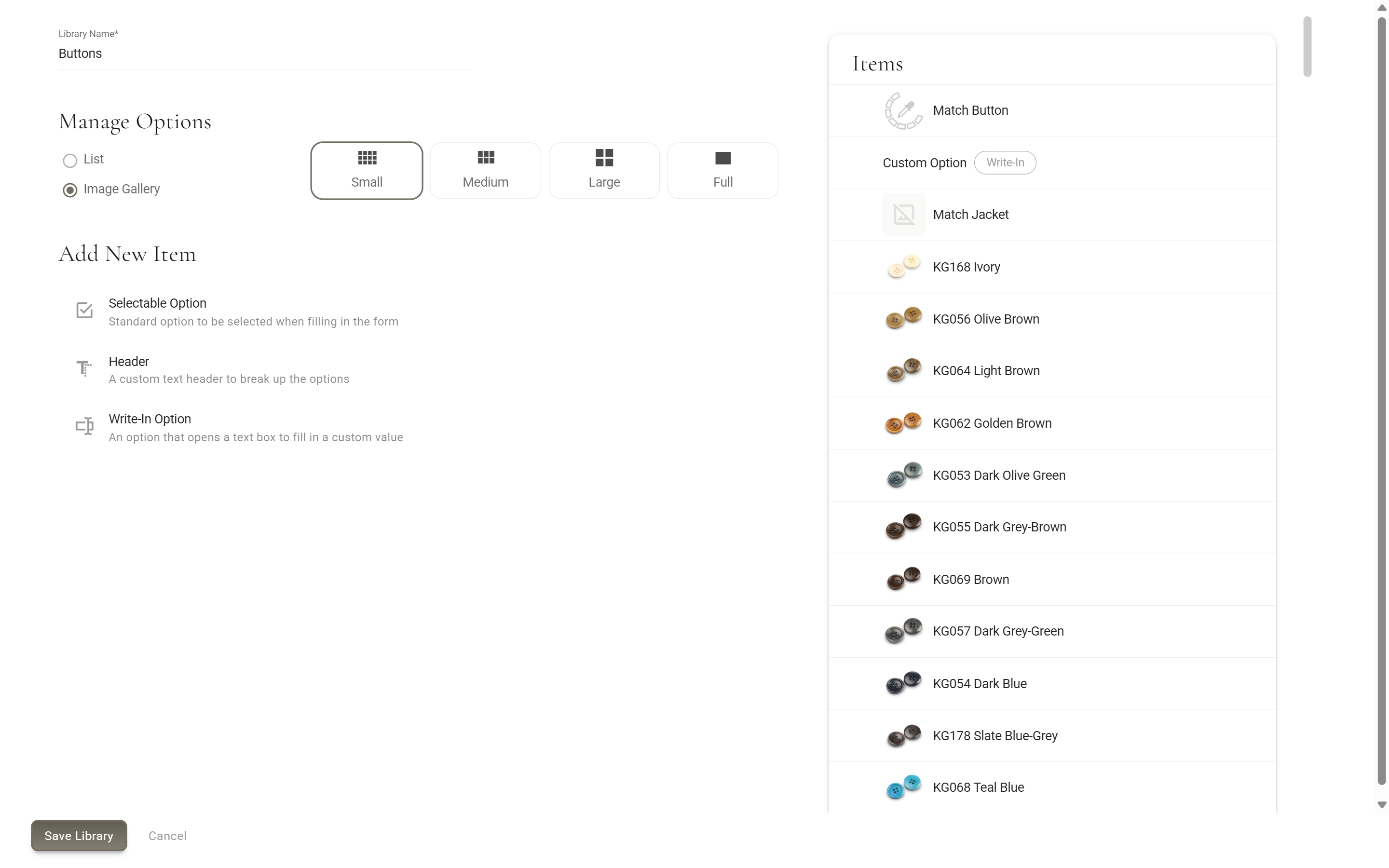
There are three item types:
- Selectable Option: a button or lining your team can pick.
- Header: a heading to group the list, such as Dark Horn and Light Horn.
- Write-In Option: opens a text box for a one-off request, such as buttons the customer brings in.
Starting from what you have
Two shortcuts sit beside Add Library.
- Create Library From FieldAlready built a long button list as a Select One field? Pick that field and its options, codes and pictures become a new library for this manufacturer. The field itself is not changed.
- Create From Another ManufacturerTick libraries you built for another manufacturer to copy them here. The copies are separate: changing one does not change the other.
Putting it on a form
In the Form Builder, on that manufacturer's Style Form, either:
- Add a Trimming Library fieldAdd a field, choose Trimming Library as the type, name it (for example Jacket Buttons) and pick the library under Selected Library. For a long library, switch on Display a search bar.
- Or add it to an existing listIn a Select One field, add an item of type Trimming Library. The whole library appears at that point in the list, so you can offer Match Fabric above your button range.
What your team sees
On a Trimming Library field, if any entry has a picture, your team sees a gallery under its headers on a computer or tablet. Otherwise, and always on a phone, it is a list. A library added inside a Select One field follows that field's own list or gallery setting.
Your team picks one entry, and clicking it again clears it. With the search bar on, they can type part of the name or the manufacturer code, handy when a customer asks for HB-24 by number.
Good to know
- Changes reach every form at onceForms always read the library as it is now, so a new entry is offered everywhere the library is used.
- Renaming or removing an entry reaches orders tooOrders that already picked that entry show the change, or lose the choice when the entry is removed. Check the orders that use a button before you retire it.
- Deleting a library gives no warning about forms using itA Trimming Library field that used it is left with nothing to pick, and a Select One field loses the library's entries but keeps its other options. Check your forms and orders first.
- One manufacturer eachA form can only use libraries from its own manufacturer. Copy a library to use it elsewhere.
- No pricesEntries hold a name, a code, a picture and a description, not a price.
More: Field Types · Using the Form Builder