Item Logic and Conflicts
Item logic greys out single options in a list when another answer rules them out, while the rest of the list stays available. This page covers setting it up, what your team sees, and how a conflict is flagged when an option already chosen is ruled out.
What item logic does
Logic shows or hides a whole field. Sometimes only some of the options are wrong. An unconstructed jacket has too little inside it for your manufacturer to add the extra pen and card pockets, but the standard pockets are still fine. A peak lapel may not come in the narrowest width.
Item logic greys out just those options. They stay on the list, so your team knows they exist and can tell the customer why they are not available today, and they cannot be picked by mistake.
Adding item logic
Using the unconstructed example, on the Interior Pockets field:
- Open the field's optionsHover Interior Pockets in the Form Builder and click Edit. The options are in the Items panel on the right.
- Tick the options to rule outClick Select Multiple in the Items panel, tick Extra Pen Pocket and Extra Card Pocket, then click Add Logic.
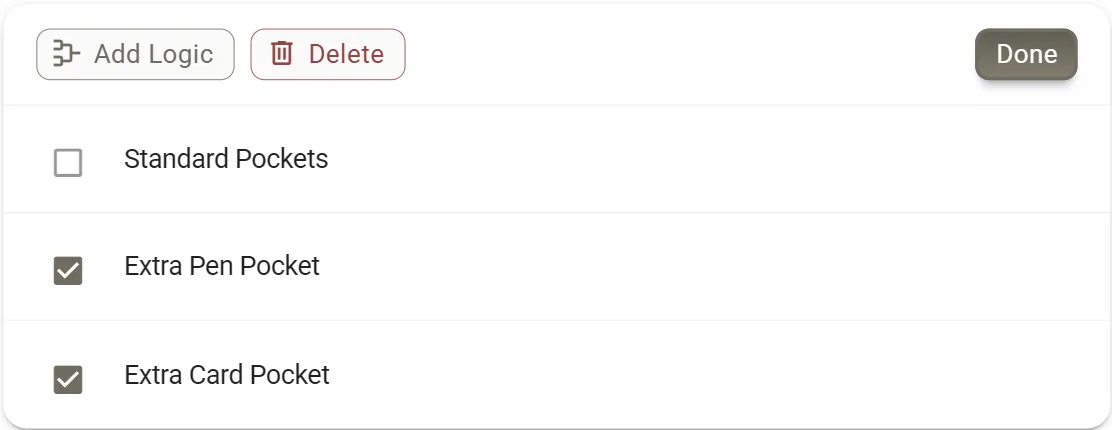
The two extra pockets ticked. Add Logic and Delete act on the ticked options. - Say whenThe panel reads "Always show these options, but disable them when:". Pick Make, keepis and tick Unconstructed. Add more conditions with and or or if needed.
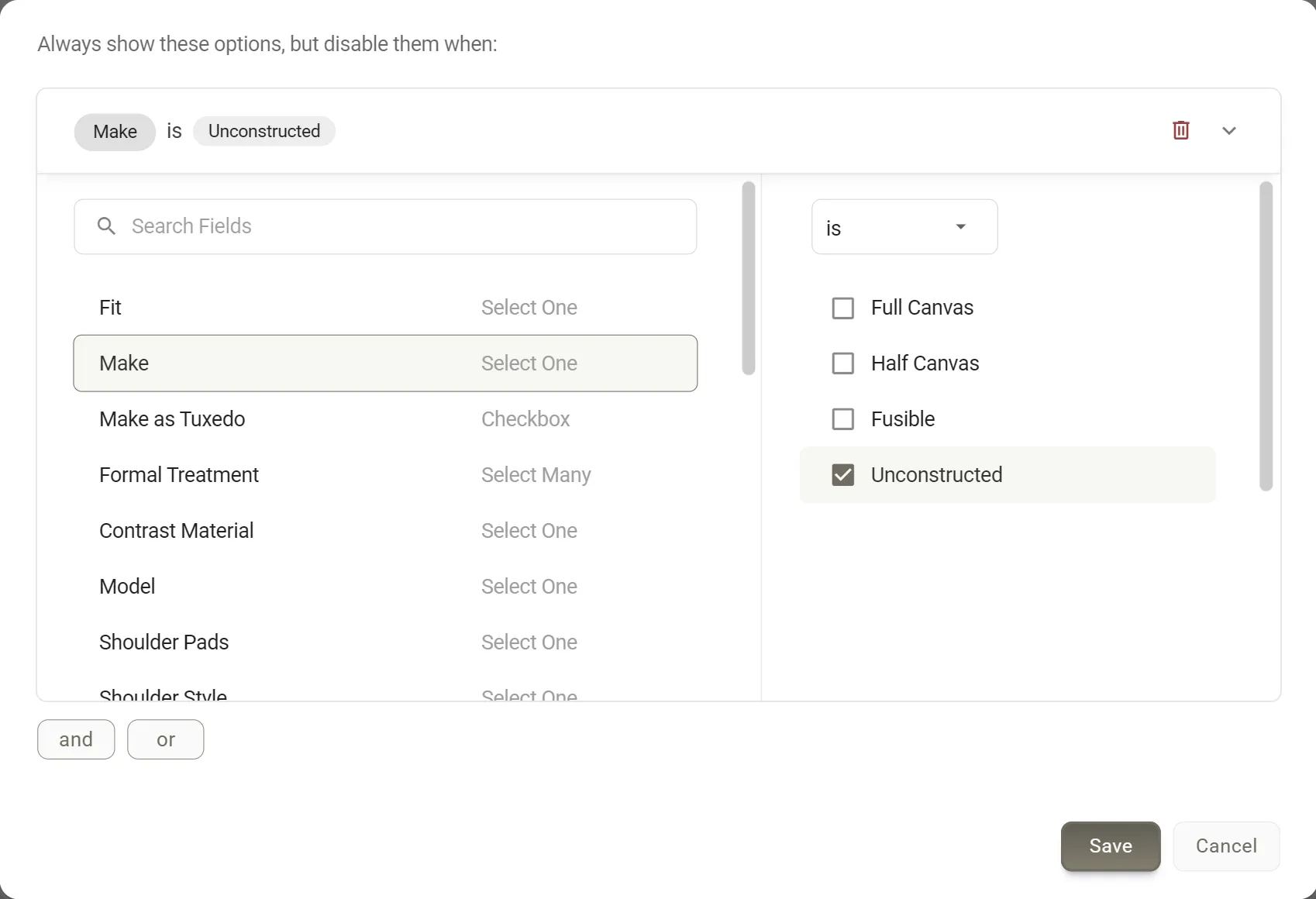
The extra pockets will be greyed out whenever Make is Unconstructed. - Save twiceClick Save in the logic panel, then Save on the field.
For a single option, click Edit on it and use Add Logic in its Logic section. Options with a rule carry the same grey logic tag as fields. Hover it to read the rule.
What your team sees on the order
Once Unconstructed is chosen, the extra pockets fade and cannot be picked. An information icon at the end of each one says why.
Hovering or tapping the icon gives the reason. If the field the rule depends on is hidden, the options are available again.
Conflicts
Orders do not always go in a straight line. Your associate adds an extra card pocket, then the customer decides on an unconstructed jacket. The card pocket is now something the manufacturer cannot make.
MTMPRO keeps the choice rather than quietly removing it, and flags the field: its name turns red with an alert icon, both in the order's field list and in the garment's preview.
To clear it, either:
- untick the greyed-out option (in a Select Many field it can still be unticked, but not ticked again),
- pick a different option, for a Select One field, or
- change the other answer back, if the customer would rather keep the pocket.
Plans
Item logic is part of the Premier, Scale and Concierge plans. It is not included in the free trial. On other plans, Select Multiple in the Items panel is greyed out beside a Premier tag. Rules already set up are kept if you change plan, but they are not applied to orders.
Good to know
- What a rule can depend onOn the Style Form, any other field on the form. On a measurement form, only fields in the same tab, and Body Profile options only on other Body Profile fields. Never the option's own field.
- One rule per optionAdding logic to options that already have a rule replaces it.
- Not every entry can have a ruleHeaders and trimming library entries cannot. Write-in options can.
- Copying keeps or drops rulesClone keeps them. Copying fields from another form drops them.
- Deleting options other rules useDeleting options with Select Multiple and Delete tells you how many conditions elsewhere on the form refer to them. The bin beside a single option deletes it straight away, with no warning. Either way, those conditions stop matching.
- Rules are not checked against each otherTwo fields that each grey out the other's options are not flagged in the builder. Try new rules on a test order.
More: Logic · Field Types · Using the Form Builder